> ## Documentation Index
> Fetch the complete documentation index at: https://docs.valuez.ai/llms.txt
> Use this file to discover all available pages before exploring further.
# Integrations
> Connect your AI agents to websites, external applications, phone systems, and speech APIs.
Integrations connect your Valuez AI agents to the outside world. Without an integration, your agent can only be tested inside the platform. Once connected, it starts handling real conversations - through your website, a phone number, or an external application.
Click **Integrations** in the left sidebar to open the Integrations screen.
***
## The Integrations Screen
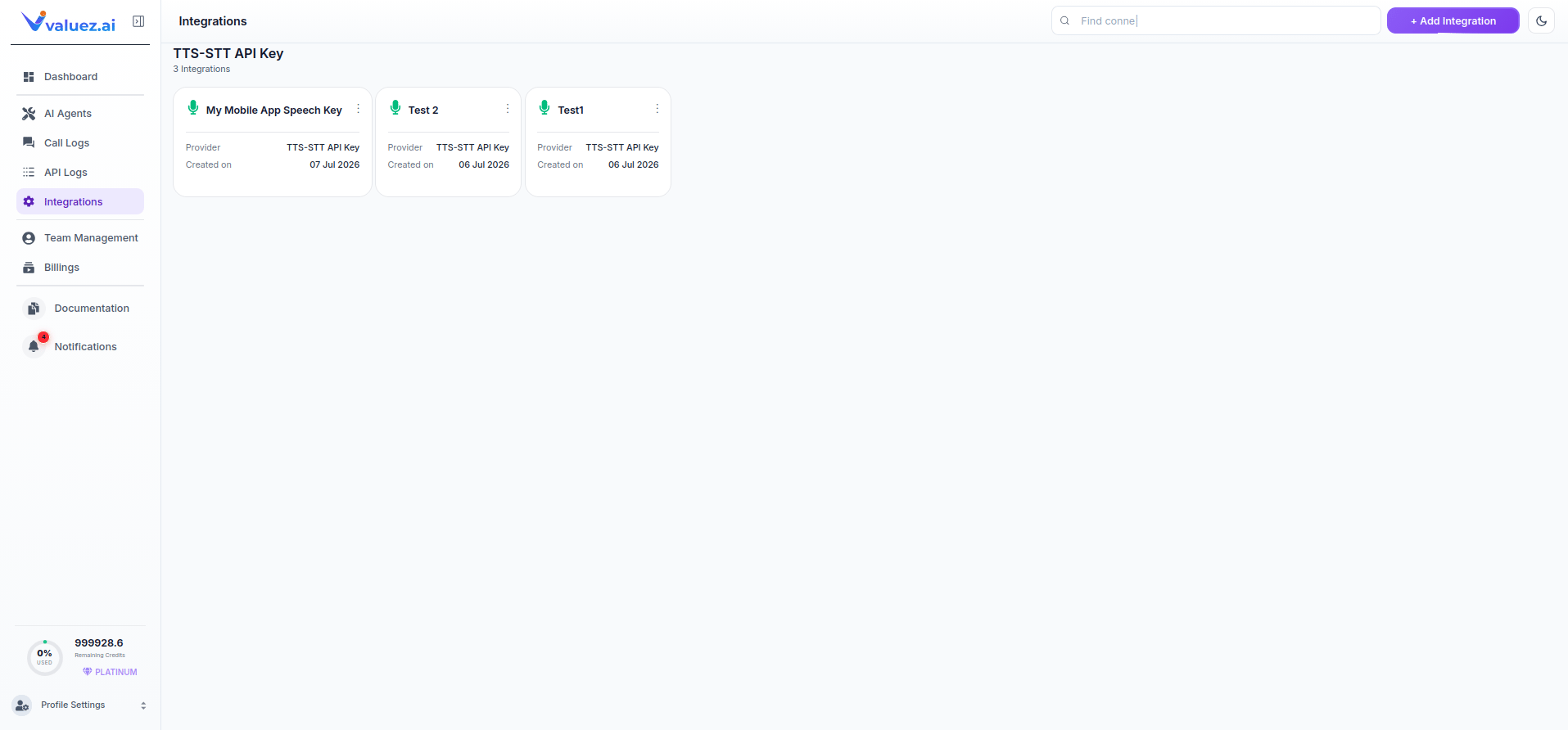 The Integrations screen shows all your active integrations as cards. Each card displays:
| Field | What It Shows |
| -------------------- | ---------------------------------------------------- |
| **Integration Name** | The label you gave this integration when creating it |
| **Provider** | The integration type - e.g. `TTS-STT API Key` |
| **Created on** | The date this integration was created |
| **Three dots menu** | Options to edit or delete the integration |
Use the search bar at the top right to find a specific integration by name. Click **+ Add Integration** to create a new one.
***
## Adding a New Integration
Click **+ Add Integration** at the top right. The Add New Integration popup appears with four integration types across three categories.
The Integrations screen shows all your active integrations as cards. Each card displays:
| Field | What It Shows |
| -------------------- | ---------------------------------------------------- |
| **Integration Name** | The label you gave this integration when creating it |
| **Provider** | The integration type - e.g. `TTS-STT API Key` |
| **Created on** | The date this integration was created |
| **Three dots menu** | Options to edit or delete the integration |
Use the search bar at the top right to find a specific integration by name. Click **+ Add Integration** to create a new one.
***
## Adding a New Integration
Click **+ Add Integration** at the top right. The Add New Integration popup appears with four integration types across three categories.
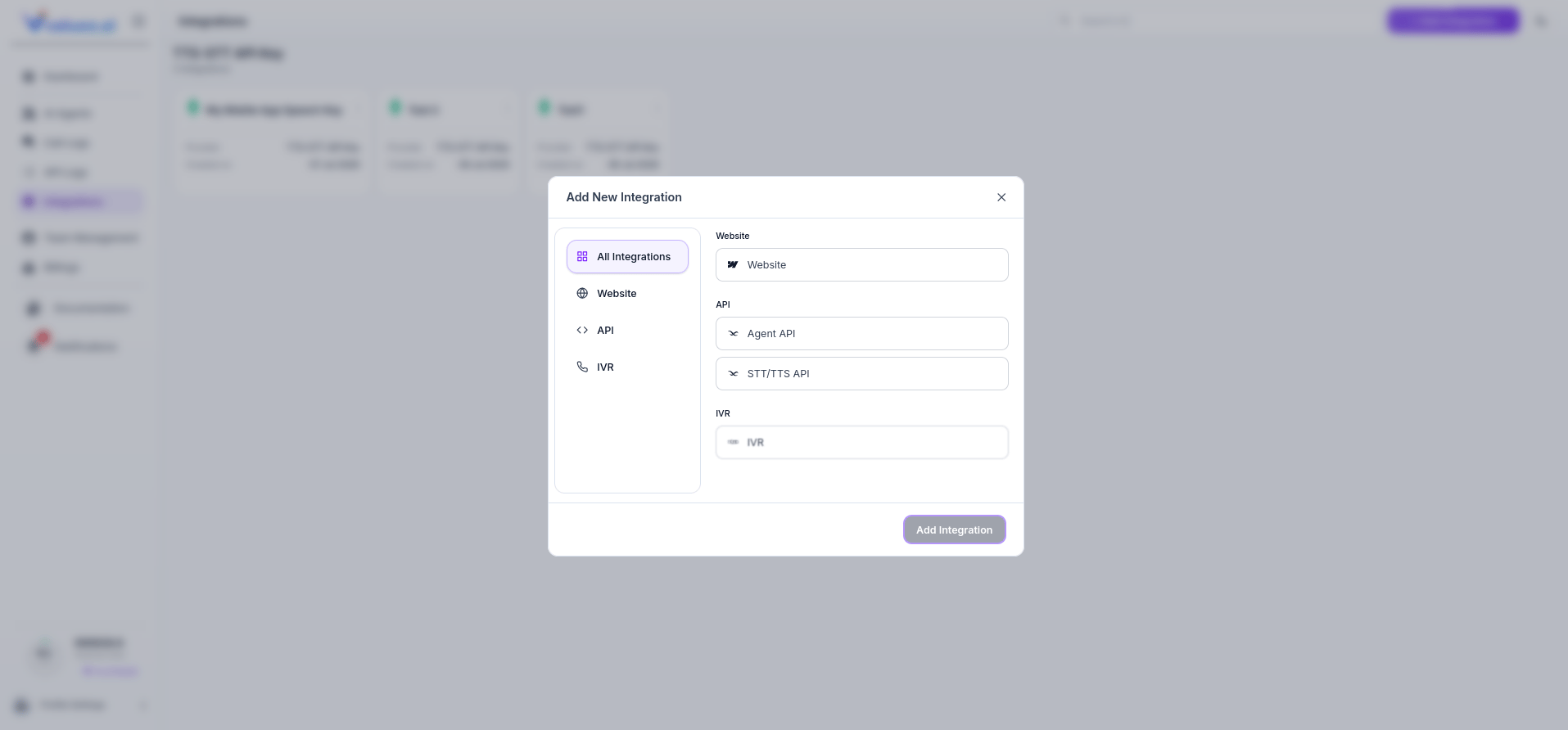 Upload a screenshot of the Add New Integration popup and save it as `/images/integrations-add-new.png`.
The left sidebar of the popup has three categories - **Website**, **API**, and **IVR**. Click **All Integrations** to see every available option at once.
***
## Integration Types
### Website
Upload a screenshot of the Add New Integration popup and save it as `/images/integrations-add-new.png`.
The left sidebar of the popup has three categories - **Website**, **API**, and **IVR**. Click **All Integrations** to see every available option at once.
***
## Integration Types
### Website
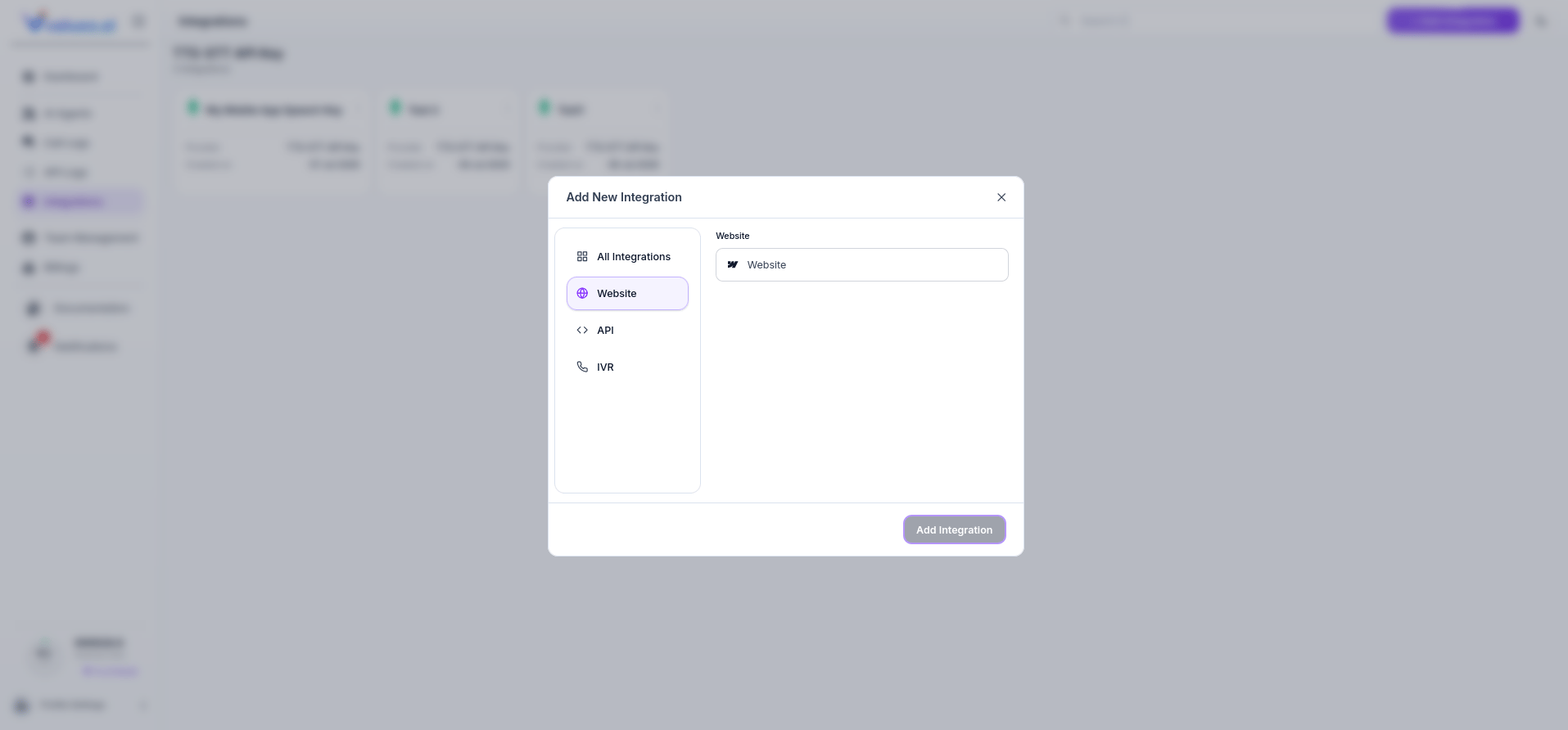 The Website integration embeds your AI agent as a chat or voice widget directly on your website. Visitors can interact with your agent without needing to make a phone call.
**Use this when:** You want to add an AI assistant to your website homepage, contact page, or support portal.
To set up: Select **Website** from the left sidebar, click the Website option, then click **Add Integration**. You will receive an embed code to paste into your website's HTML.
***
### API - Agent API
The Website integration embeds your AI agent as a chat or voice widget directly on your website. Visitors can interact with your agent without needing to make a phone call.
**Use this when:** You want to add an AI assistant to your website homepage, contact page, or support portal.
To set up: Select **Website** from the left sidebar, click the Website option, then click **Add Integration**. You will receive an embed code to paste into your website's HTML.
***
### API - Agent API
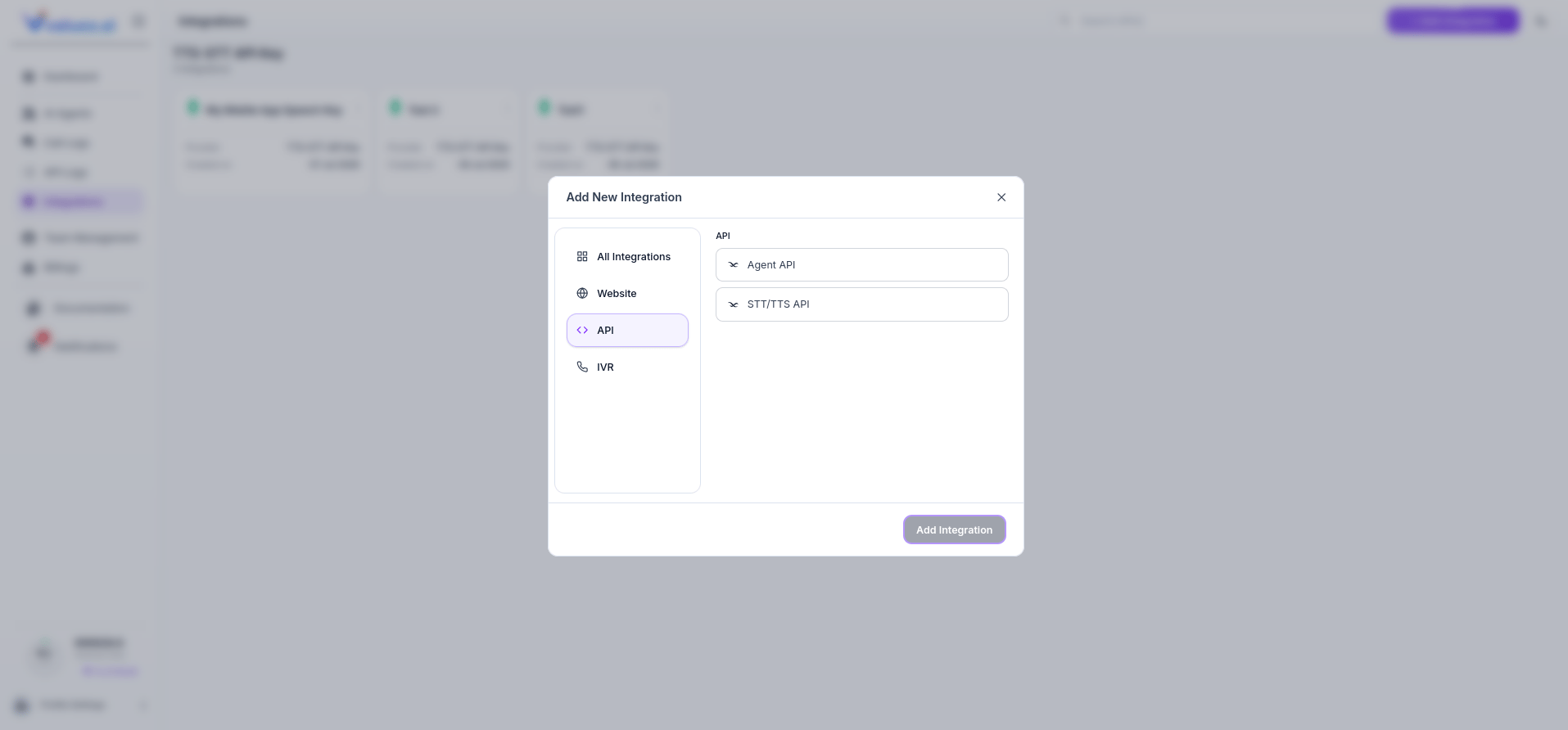 The Agent API gives external applications programmatic access to your AI agents - triggering conversations, sending messages, and receiving responses via API calls.
**Use this when:** You want to trigger agent conversations from your CRM, custom application, or automation workflow.
**To create an Agent API key:**
Click **API** in the left sidebar of the popup, then select **Agent API** and click **Add Integration**.
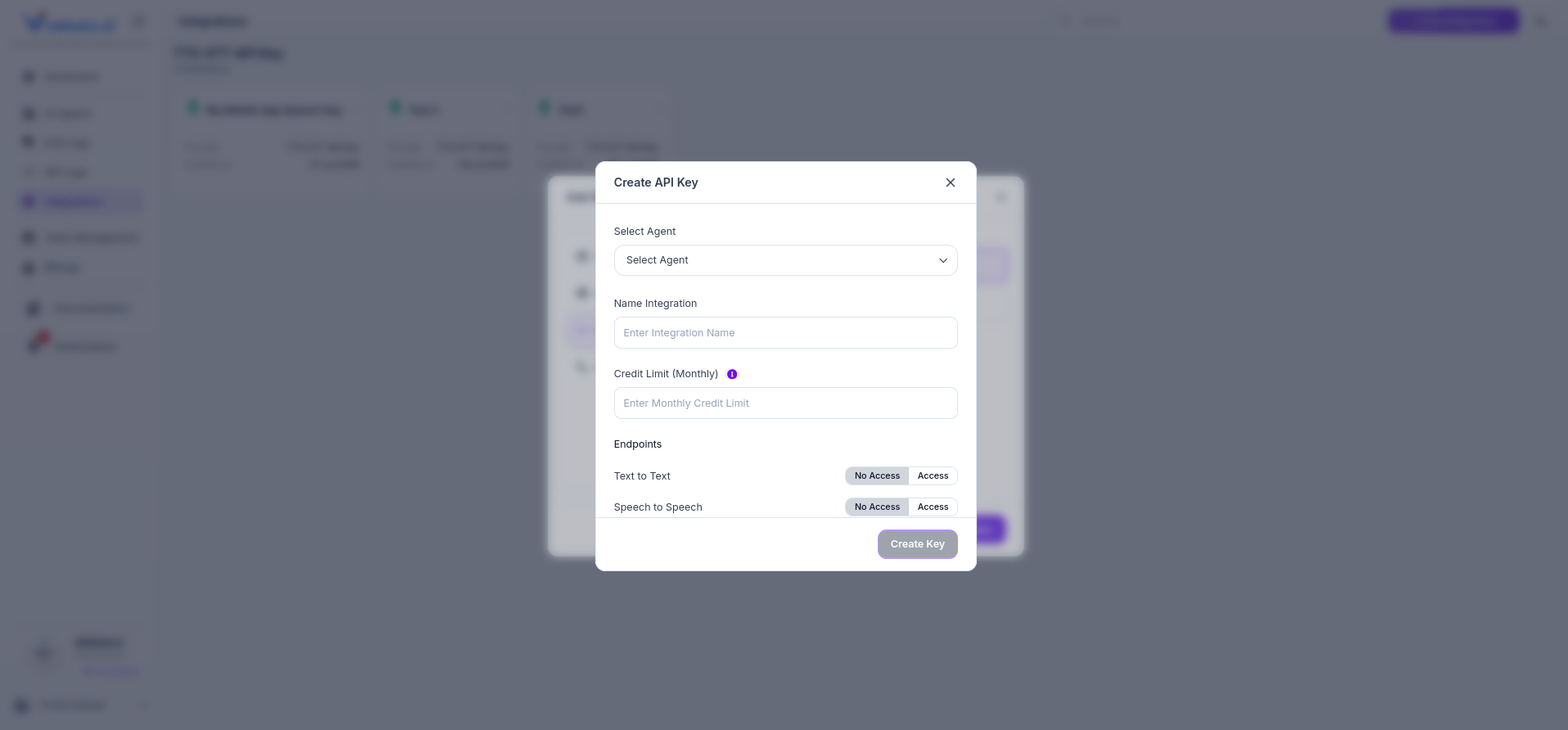
In the Create API Key dialog, use the **Select Agent** dropdown to choose which agent this key will connect to.
Enter a descriptive name in the **Name Integration** field - e.g. `CRM Integration` or `Mobile App Key`. This label helps you identify it later.
Enter a **Credit Limit (Monthly)** to cap how many credits this integration can consume per month. This prevents unexpected overuse.
Under **Endpoints**, set access for each conversation mode independently:
* **Text to Text** - toggle Access to allow text-based conversations via API
* **Speech to Speech** - toggle Access to allow voice-based conversations via API Set either to **No Access** to restrict that mode for this key.
Click **Create Key**. Your API key is generated. Copy it immediately - it is only shown once.
The Agent API gives external applications programmatic access to your AI agents - triggering conversations, sending messages, and receiving responses via API calls.
**Use this when:** You want to trigger agent conversations from your CRM, custom application, or automation workflow.
**To create an Agent API key:**
Click **API** in the left sidebar of the popup, then select **Agent API** and click **Add Integration**.
In the Create API Key dialog, use the **Select Agent** dropdown to choose which agent this key will connect to.
Enter a descriptive name in the **Name Integration** field - e.g. `CRM Integration` or `Mobile App Key`. This label helps you identify it later.
Enter a **Credit Limit (Monthly)** to cap how many credits this integration can consume per month. This prevents unexpected overuse.
Under **Endpoints**, set access for each conversation mode independently:
* **Text to Text** - toggle Access to allow text-based conversations via API
* **Speech to Speech** - toggle Access to allow voice-based conversations via API Set either to **No Access** to restrict that mode for this key.
Click **Create Key**. Your API key is generated. Copy it immediately - it is only shown once.
 Copy your API key as soon as it is generated. For security reasons, the full key is only displayed once. If you lose it, you will need to delete it and create a new one.
***
### API - STT/TTS API
The STT/TTS API gives you direct access to Valuez AI's speech-to-text and text-to-speech infrastructure - independent of any specific agent. Use this to build custom voice applications that use Valuez AI's voice processing capabilities.
**Use this when:** You are building a custom application that needs speech recognition or voice synthesis without going through a full agent conversation flow.
**To create an STT/TTS API key:**
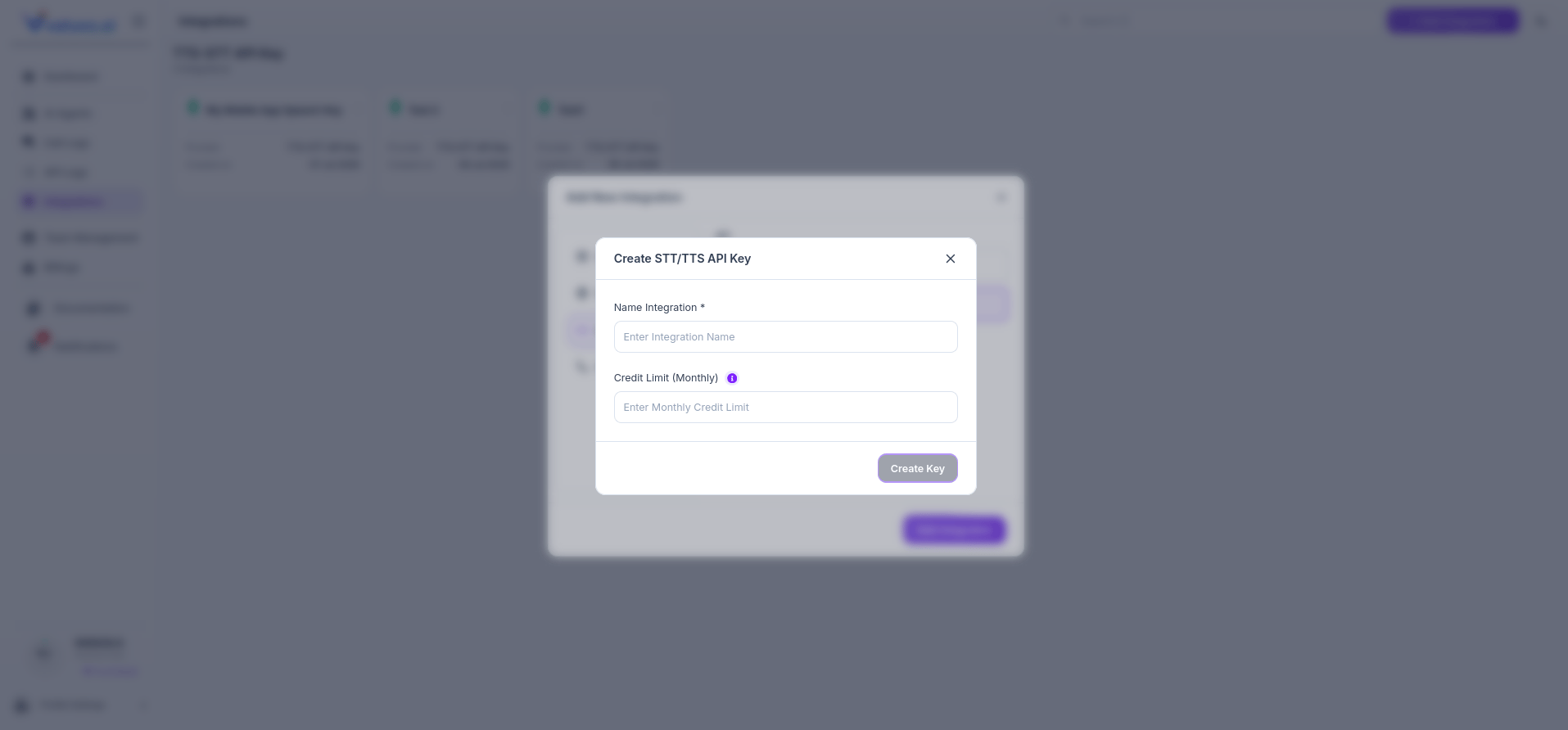
Click **API** in the left sidebar, select **STT/TTS API**, and click **Add Integration**.
Enter a descriptive name in the **Name Integration** field - e.g. `My Mobile App Speech Key`.
Enter a **Credit Limit (Monthly)** to cap monthly usage for this key.
Click **Create Key**. Your STT/TTS API key is generated.
Copy your API key as soon as it is generated. For security reasons, the full key is only displayed once. If you lose it, you will need to delete it and create a new one.
***
### API - STT/TTS API
The STT/TTS API gives you direct access to Valuez AI's speech-to-text and text-to-speech infrastructure - independent of any specific agent. Use this to build custom voice applications that use Valuez AI's voice processing capabilities.
**Use this when:** You are building a custom application that needs speech recognition or voice synthesis without going through a full agent conversation flow.
**To create an STT/TTS API key:**
Click **API** in the left sidebar, select **STT/TTS API**, and click **Add Integration**.
Enter a descriptive name in the **Name Integration** field - e.g. `My Mobile App Speech Key`.
Enter a **Credit Limit (Monthly)** to cap monthly usage for this key.
Click **Create Key**. Your STT/TTS API key is generated.
 | STT/TTS | What It Does |
| ------------------------ | ----------------------------------------------------------------------- |
| **STT (Speech to Text)** | Converts spoken audio into text - used to transcribe what callers say |
| **TTS (Text to Speech)** | Converts text into spoken audio - used to generate what your agent says |
***
### IVR
The IVR integration connects your agent to a phone number through an Interactive Voice Response system. This is how you enable real inbound calling - customers call a phone number and your AI agent answers automatically.
**Use this when:** You want customers to be able to call a real phone number and have your AI agent handle the conversation.
To set up: Select **IVR** from the left sidebar, click **IVR**, then click **Add Integration** and follow the phone number configuration steps.
***
## Managing Existing Integrations
From the Integrations screen you can manage all active integrations:
| Action | How |
| ------------------------- | ------------------------------------------------------------- |
| **View all integrations** | All active integrations are shown as cards on the main screen |
| **Search** | Use the search bar top right to find an integration by name |
| **Edit an integration** | Click the three dots menu on any card and select Edit |
| **Delete an integration** | Click the three dots menu on any card and select Delete |
Deleting an integration immediately revokes access for any system using that key. Make sure to update your application or website before deleting an active integration.
***
## Which Integration Should You Use?
| Your Goal | Integration to Use |
| --------------------------------------------------------------- | ------------------ |
| Add a chat or voice widget to your website | Website |
| Connect your CRM or custom app to an agent | Agent API |
| Build a custom voice app using Valuez AI's speech engine | STT/TTS API |
| Enable customers to call a phone number | IVR |
| Trigger agent conversations from an automation tool like Zapier | Agent API |
***
## Related Pages
Monitor all STT/TTS API calls - usage, latency, transcriptions, and audio files.
Learn about API authentication and how to manage your keys securely.
Configure the agent you want to connect before setting up an integration.
Review all conversations that come through your integrations.
| STT/TTS | What It Does |
| ------------------------ | ----------------------------------------------------------------------- |
| **STT (Speech to Text)** | Converts spoken audio into text - used to transcribe what callers say |
| **TTS (Text to Speech)** | Converts text into spoken audio - used to generate what your agent says |
***
### IVR
The IVR integration connects your agent to a phone number through an Interactive Voice Response system. This is how you enable real inbound calling - customers call a phone number and your AI agent answers automatically.
**Use this when:** You want customers to be able to call a real phone number and have your AI agent handle the conversation.
To set up: Select **IVR** from the left sidebar, click **IVR**, then click **Add Integration** and follow the phone number configuration steps.
***
## Managing Existing Integrations
From the Integrations screen you can manage all active integrations:
| Action | How |
| ------------------------- | ------------------------------------------------------------- |
| **View all integrations** | All active integrations are shown as cards on the main screen |
| **Search** | Use the search bar top right to find an integration by name |
| **Edit an integration** | Click the three dots menu on any card and select Edit |
| **Delete an integration** | Click the three dots menu on any card and select Delete |
Deleting an integration immediately revokes access for any system using that key. Make sure to update your application or website before deleting an active integration.
***
## Which Integration Should You Use?
| Your Goal | Integration to Use |
| --------------------------------------------------------------- | ------------------ |
| Add a chat or voice widget to your website | Website |
| Connect your CRM or custom app to an agent | Agent API |
| Build a custom voice app using Valuez AI's speech engine | STT/TTS API |
| Enable customers to call a phone number | IVR |
| Trigger agent conversations from an automation tool like Zapier | Agent API |
***
## Related Pages
Monitor all STT/TTS API calls - usage, latency, transcriptions, and audio files.
Learn about API authentication and how to manage your keys securely.
Configure the agent you want to connect before setting up an integration.
Review all conversations that come through your integrations.