> ## Documentation Index
> Fetch the complete documentation index at: https://docs.valuez.ai/llms.txt
> Use this file to discover all available pages before exploring further.
# Notifications
> Stay informed about important platform events, account activity, and action items.
Notifications keep you updated on key events across your Valuez AI workspace - from account setup confirmations to reminders about pending actions like connecting your agents to an integration.
Click **Notifications** in the left sidebar or click the bell icon to open the notifications screen.
***
## The Notifications Screen
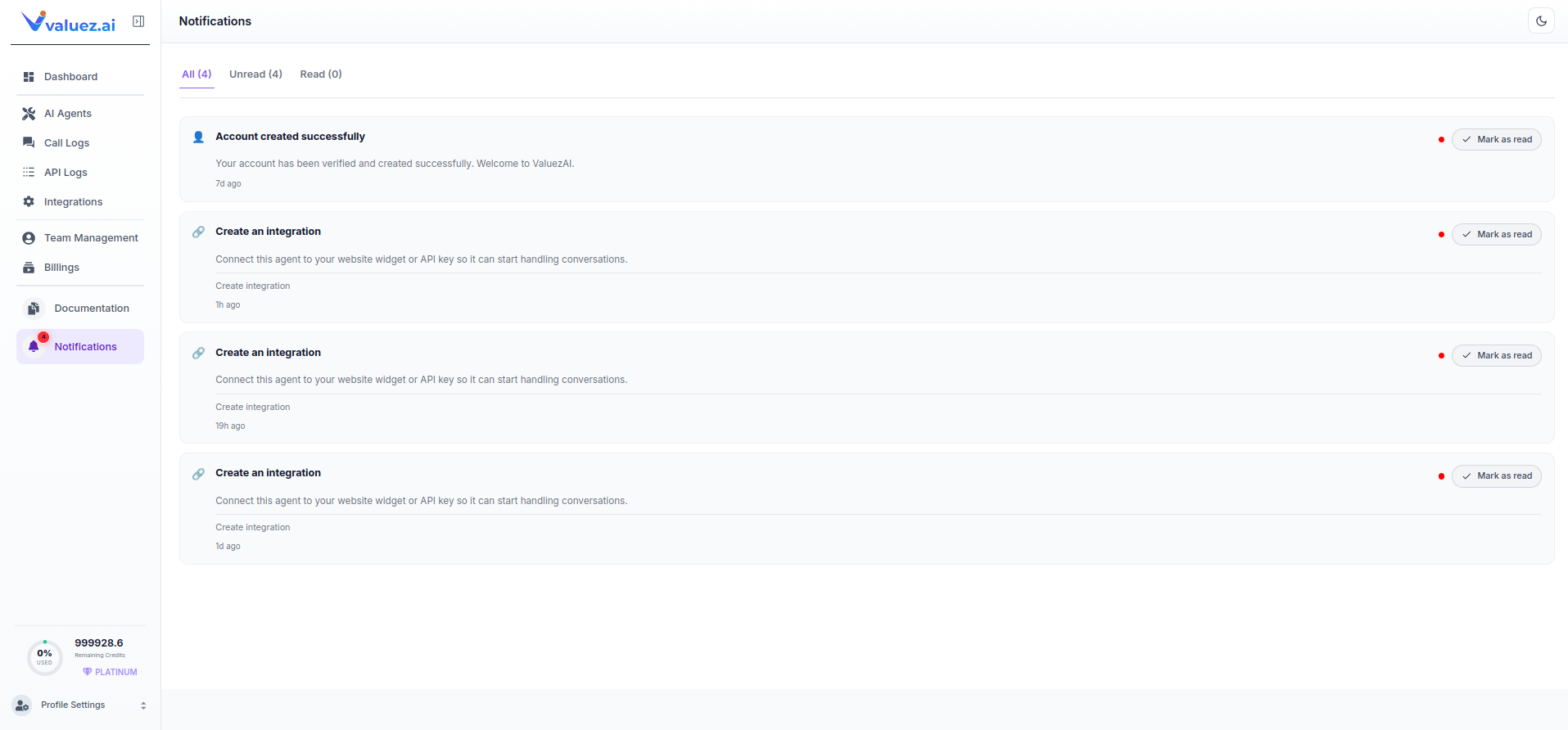 Upload a screenshot of your Notifications screen and save it as `/images/notifications.png`.
The screen has three tabs at the top:
| Tab | What It Shows |
| ---------- | -------------------------------------------------------------------------- |
| **All** | Every notification - both read and unread - with a total count in brackets |
| **Unread** | Only notifications you have not yet marked as read |
| **Read** | Notifications you have already marked as read |
***
## Notification Types
### Account Created Successfully
Sent automatically when your account is verified and created. This is your first notification and confirms your workspace is ready to use.
### Create an Integration
Sent after you create an AI agent that has not yet been connected to an integration. The notification reminds you to connect the agent to a website widget or API key so it can start handling real conversations.
Each notification includes a **Create Integration** link that takes you directly to the Integrations screen.
If you see multiple "Create an integration" notifications, each one corresponds to a different agent that still needs to be connected. Click the Create Integration link within each notification to set it up.
***
## Managing Notifications
| Action | How |
| ----------------- | ------------------------------------------------------------------------- |
| **Mark as read** | Click **✓ Mark as read** on the right side of any notification |
| **View all** | Click the **All** tab to see every notification regardless of read status |
| **Filter unread** | Click the **Unread** tab to see only pending notifications |
| **View read** | Click the **Read** tab to see previously actioned notifications |
Each notification shows a **timestamp** below the description - for example, `7d ago`, `1h ago`, or `1d ago` - so you know when each event occurred.
The red dot on the left of each notification indicates it is unread. Once you click **Mark as read**, the dot disappears and the notification moves to the **Read** tab.
***
## Notification Bell
The bell icon in the left sidebar shows a red badge with the count of unread notifications. This count updates in real time as new notifications arrive. Click the bell or the Notifications menu item to open the screen.
***
## Related Pages
Connect your agents to a website widget, API key, or IVR phone number so they can handle real conversations.
View and configure the agents that triggered integration reminders.
Invite team members and manage workspace access.
Return to the main dashboard for a real-time overview of your platform activity.
Upload a screenshot of your Notifications screen and save it as `/images/notifications.png`.
The screen has three tabs at the top:
| Tab | What It Shows |
| ---------- | -------------------------------------------------------------------------- |
| **All** | Every notification - both read and unread - with a total count in brackets |
| **Unread** | Only notifications you have not yet marked as read |
| **Read** | Notifications you have already marked as read |
***
## Notification Types
### Account Created Successfully
Sent automatically when your account is verified and created. This is your first notification and confirms your workspace is ready to use.
### Create an Integration
Sent after you create an AI agent that has not yet been connected to an integration. The notification reminds you to connect the agent to a website widget or API key so it can start handling real conversations.
Each notification includes a **Create Integration** link that takes you directly to the Integrations screen.
If you see multiple "Create an integration" notifications, each one corresponds to a different agent that still needs to be connected. Click the Create Integration link within each notification to set it up.
***
## Managing Notifications
| Action | How |
| ----------------- | ------------------------------------------------------------------------- |
| **Mark as read** | Click **✓ Mark as read** on the right side of any notification |
| **View all** | Click the **All** tab to see every notification regardless of read status |
| **Filter unread** | Click the **Unread** tab to see only pending notifications |
| **View read** | Click the **Read** tab to see previously actioned notifications |
Each notification shows a **timestamp** below the description - for example, `7d ago`, `1h ago`, or `1d ago` - so you know when each event occurred.
The red dot on the left of each notification indicates it is unread. Once you click **Mark as read**, the dot disappears and the notification moves to the **Read** tab.
***
## Notification Bell
The bell icon in the left sidebar shows a red badge with the count of unread notifications. This count updates in real time as new notifications arrive. Click the bell or the Notifications menu item to open the screen.
***
## Related Pages
Connect your agents to a website widget, API key, or IVR phone number so they can handle real conversations.
View and configure the agents that triggered integration reminders.
Invite team members and manage workspace access.
Return to the main dashboard for a real-time overview of your platform activity.