> ## Documentation Index
> Fetch the complete documentation index at: https://docs.valuez.ai/llms.txt
> Use this file to discover all available pages before exploring further.
# Call Logs and Customer Actions
> Review calls, summaries, transcripts, follow-ups, history, and customer details
**Call Logs** keeps your completed call activity in one place. Use it before a callback and immediately after a conversation to record the next sales action.
 ## Open a call record
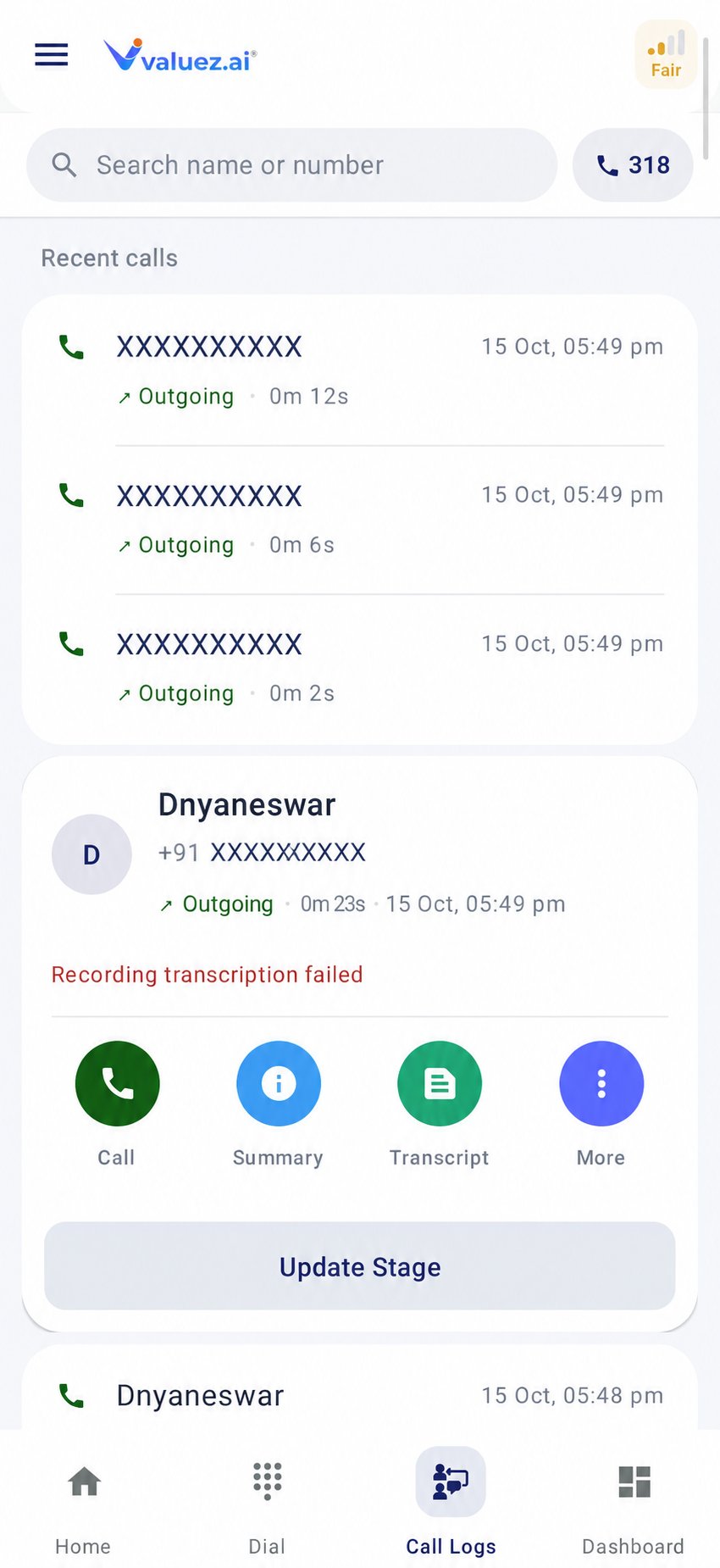
1. Open **Call Logs**.
2. Select a customer or phone number.
3. Review the available call time, duration, and customer information.
4. Choose the action you need.
Depending on the call and your workspace settings, the record can include:
* **Call** — call the customer again.
* **Summary** — a short account of the conversation.
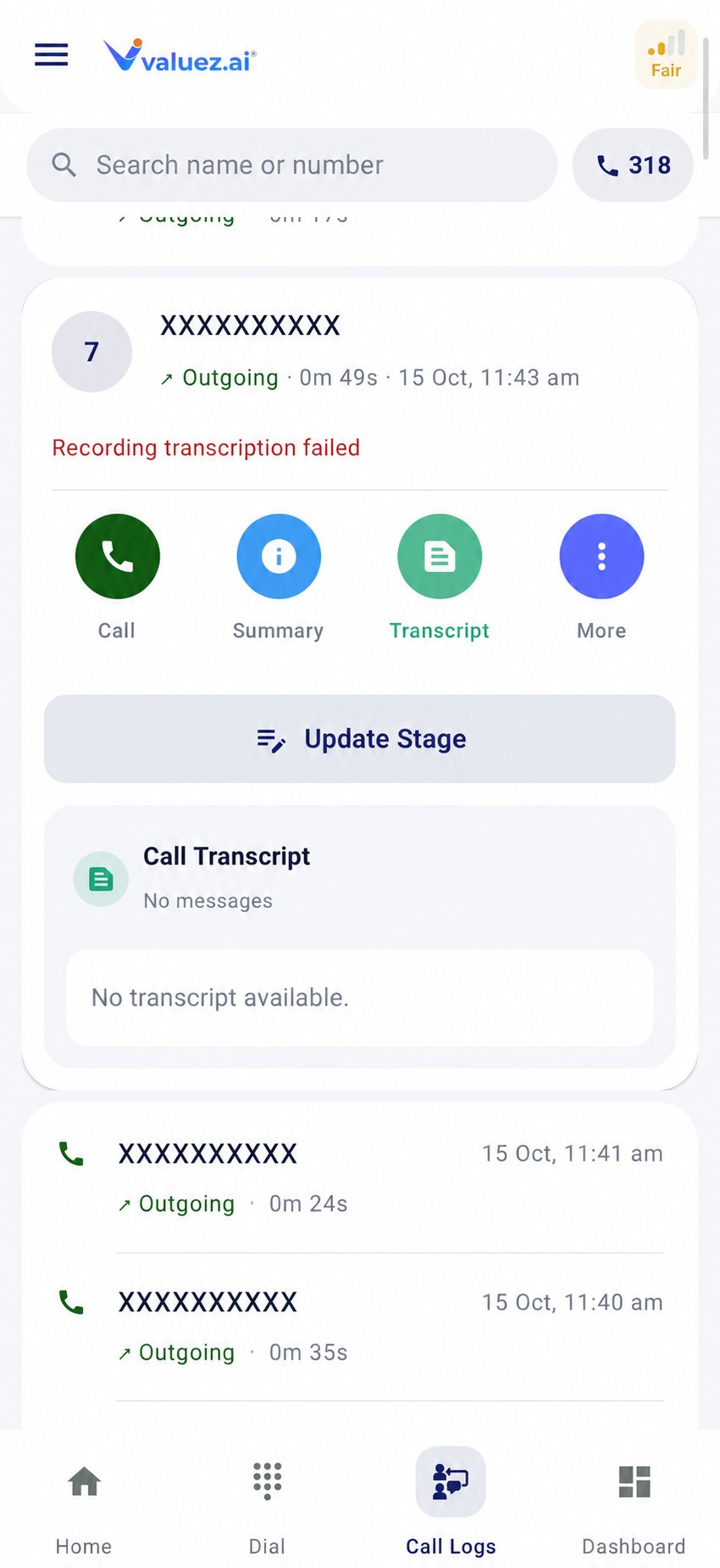
* **Transcript** — the recorded conversation converted to text.
* **More** — follow-up, call history, CRM data, and customer updates.
* **Update Stage** — save the sales stage and this call’s result.
## Open a call record
1. Open **Call Logs**.
2. Select a customer or phone number.
3. Review the available call time, duration, and customer information.
4. Choose the action you need.
Depending on the call and your workspace settings, the record can include:
* **Call** — call the customer again.
* **Summary** — a short account of the conversation.
* **Transcript** — the recorded conversation converted to text.
* **More** — follow-up, call history, CRM data, and customer updates.
* **Update Stage** — save the sales stage and this call’s result.
 ## Summary and transcript
The summary helps you recall the customer’s need, objections, and next action. The transcript gives more detail when a recording was captured and processed successfully.
## Summary and transcript
The summary helps you recall the customer’s need, objections, and next action. The transcript gives more detail when a recording was captured and processed successfully.
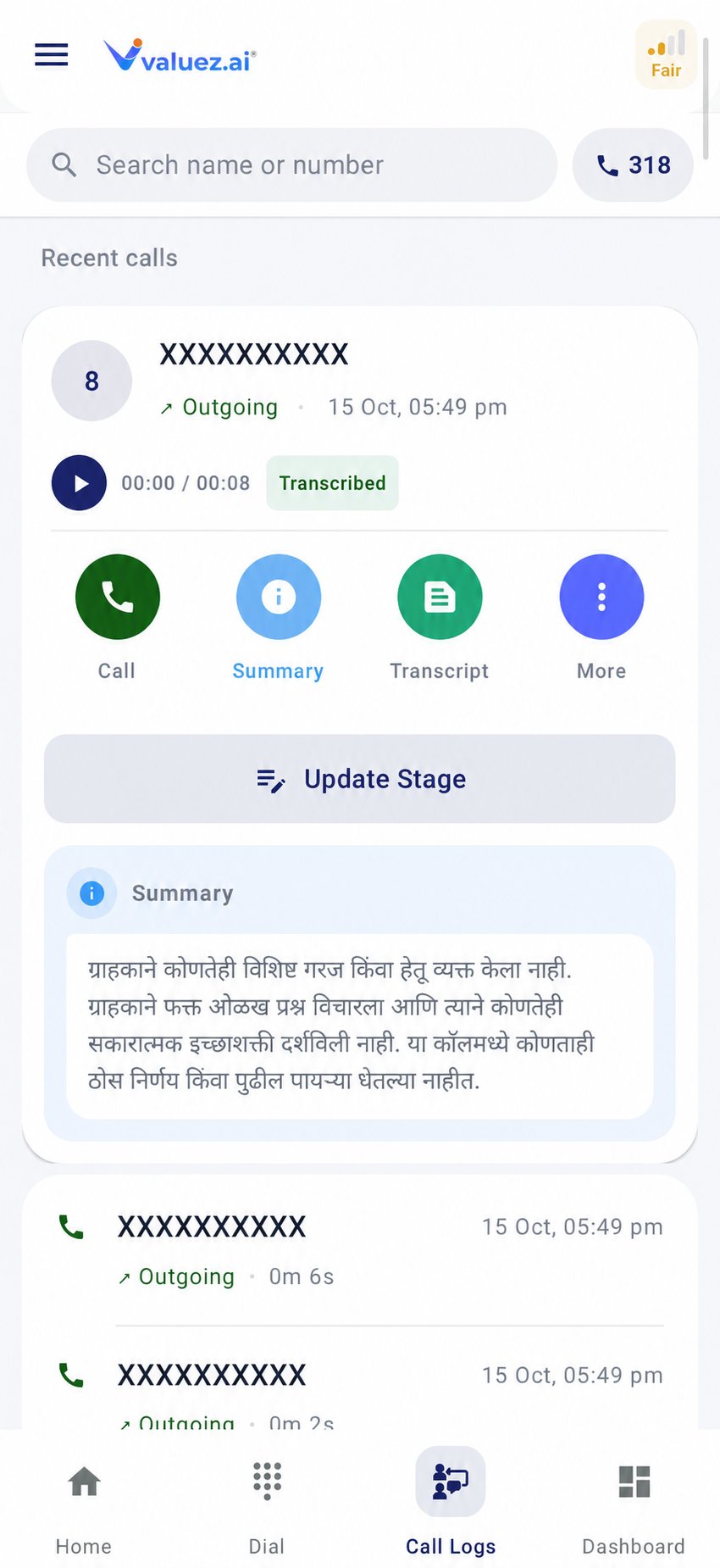 Use these as a reference, then add your own remark if an important detail is missing or incorrect. A transcript may be unavailable when recording was inactive, audio was unclear, or processing did not complete.
## Follow-up
Use **More → Follow-up** when the customer asks you to call or respond later.
1. Open the customer record.
2. Tap **More → Follow-up**.
3. Add the agreed date, time, and reason where those fields are available.
4. Write a clear note, such as `Call Friday at 11 AM after customer reviews pricing`.
5. Save the follow-up.
Avoid notes such as `call later`; they do not tell you what the customer expects.
## Call History
Open **More → Call History** before a repeat call to review earlier conversations with the same customer. Check the most recent promise, call result, and duration so the customer does not need to repeat information.
## CRM Data
**CRM Data** shows saved customer information such as name, phone number, email, address, and notes. Treat this information as confidential and use it only for approved business activity.
## Update Customer
Use **More → Update Customer** when customer information is incomplete or incorrect.
1. Correct only the fields you have verified with the customer.
2. Check phone and email spelling carefully.
3. Add location or address details only when your process requires them.
4. Save the changes.
Do not replace valid customer information with assumptions.
## Update Stage
**Update Stage** is a separate action on the call record. Use it to save:
* The customer’s sales stage
* The result of the current call
* A remark and useful tags
* A scheduled follow-up
* Products for a quotation when applicable
Before closing a call record, confirm three things: the stage is accurate, the remark explains the next action, and any promised follow-up has been scheduled.
Choose the right stage, save the call status, and prepare a quotation.
Check network, SIM, battery, permissions, and recording readiness.
This documentation is built and hosted on [Mintlify](https://mintlify.com), a developer documentation platform.
Use these as a reference, then add your own remark if an important detail is missing or incorrect. A transcript may be unavailable when recording was inactive, audio was unclear, or processing did not complete.
## Follow-up
Use **More → Follow-up** when the customer asks you to call or respond later.
1. Open the customer record.
2. Tap **More → Follow-up**.
3. Add the agreed date, time, and reason where those fields are available.
4. Write a clear note, such as `Call Friday at 11 AM after customer reviews pricing`.
5. Save the follow-up.
Avoid notes such as `call later`; they do not tell you what the customer expects.
## Call History
Open **More → Call History** before a repeat call to review earlier conversations with the same customer. Check the most recent promise, call result, and duration so the customer does not need to repeat information.
## CRM Data
**CRM Data** shows saved customer information such as name, phone number, email, address, and notes. Treat this information as confidential and use it only for approved business activity.
## Update Customer
Use **More → Update Customer** when customer information is incomplete or incorrect.
1. Correct only the fields you have verified with the customer.
2. Check phone and email spelling carefully.
3. Add location or address details only when your process requires them.
4. Save the changes.
Do not replace valid customer information with assumptions.
## Update Stage
**Update Stage** is a separate action on the call record. Use it to save:
* The customer’s sales stage
* The result of the current call
* A remark and useful tags
* A scheduled follow-up
* Products for a quotation when applicable
Before closing a call record, confirm three things: the stage is accurate, the remark explains the next action, and any promised follow-up has been scheduled.
Choose the right stage, save the call status, and prepare a quotation.
Check network, SIM, battery, permissions, and recording readiness.
This documentation is built and hosted on [Mintlify](https://mintlify.com), a developer documentation platform.