> ## Documentation Index
> Fetch the complete documentation index at: https://docs.valuez.ai/llms.txt
> Use this file to discover all available pages before exploring further.
# Understand Your Dashboard
> Read call activity, talk time, SMS totals, network status, and date filters
The **Dashboard** gives you a quick view of phone activity for the selected period. Use it to spot missed calls, compare incoming and outgoing work, and decide what needs attention next.
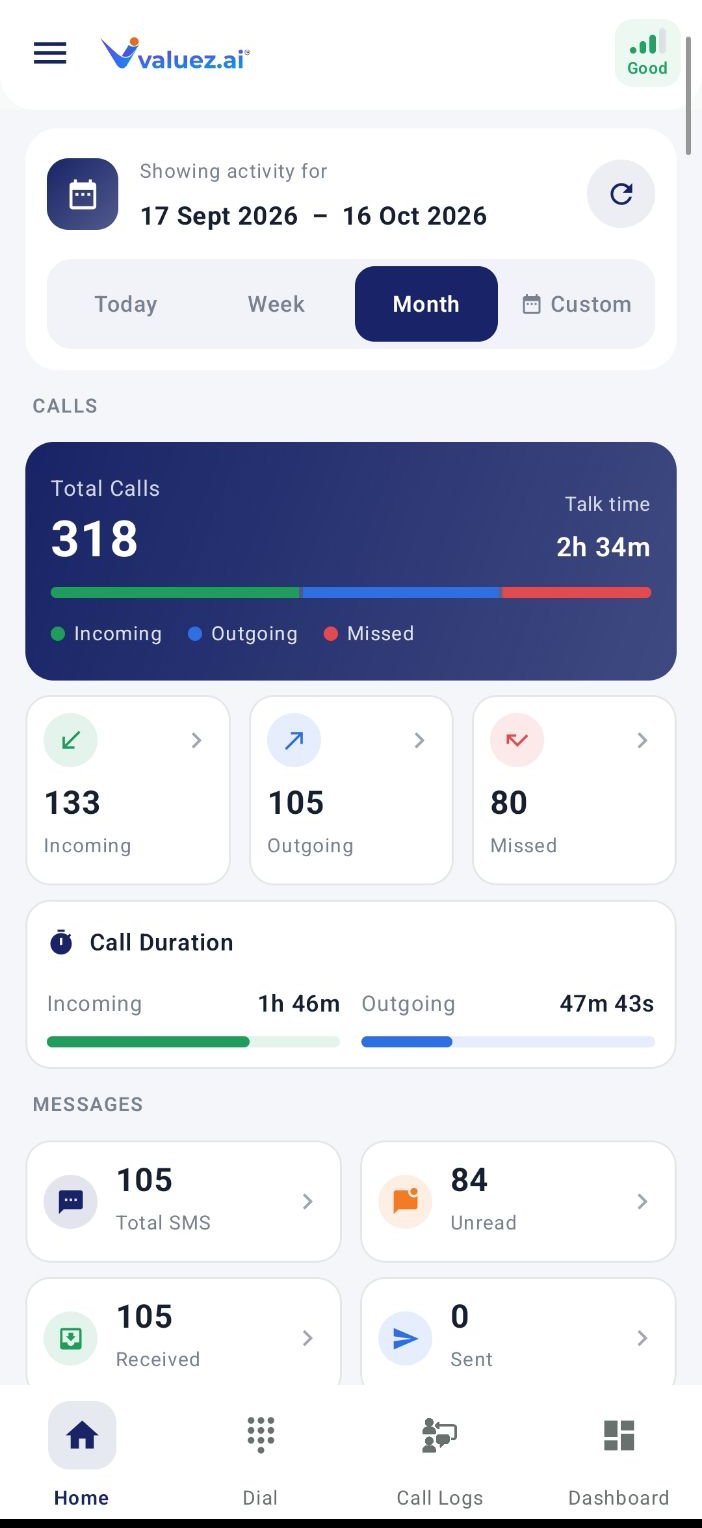 ## Select the period first
Choose the period at the top before reading the totals:
* **Today** — activity for the current day.
* **Week** — the recent weekly view shown by the app.
* **Month** — the current monthly view.
* **Custom** — a start and end date you select.
The cards update for the chosen period. When comparing two results, use the same date filter for both.
Start each workday with **Today**. Use **Week** during a manager review and **Custom** when checking a specific campaign or follow-up period.
## Read the call summary
The call section combines the number of calls with total talk time.
| Item | What it tells you | Suggested action |
| - | - | - |
| **Total Calls** | All recorded calls in the selected period | Compare it with your assigned workload |
| **Incoming** | Calls received from customers | Review missed or unanswered customer callbacks |
| **Outgoing** | Calls placed from the phone | Confirm you are progressing through assignments |
| **Missed** | Incoming calls that were not answered | Return valid customer calls promptly |
| **Talk Time** | Combined time spent on recorded calls | Open Call Logs to understand unusually short or long activity |
| **Incoming Duration** | Talk time on received calls | Check whether customer callbacks need follow-up |
| **Outgoing Duration** | Talk time on calls you placed | Compare call time with saved outcomes, not by itself |
High activity does not always mean strong progress. Review stages, outcomes, remarks, and follow-ups together with call totals.
## Read SMS activity
Where SMS access is enabled, the Dashboard can show:
* **Total SMS** — all recorded messages in the selected period.
* **Received** — messages received by the phone.
* **Sent** — messages sent from the phone.
* **Unread** — received messages that have not been opened.
Open unread customer messages before starting a new call sequence. A customer may already have replied with a preferred callback time or an answer to your question.
## Check phone readiness
The Dashboard can also show status such as **Network Signal**, **Battery Level**, and **Recharge Expiry** when that information is available.
* If signal is weak, move to a better coverage area before an important call.
* If battery is low, charge the phone before starting a long call sequence.
* If recharge information needs attention, confirm that the work SIM has an active plan.
* If values are missing, open **Device Info** and recheck the app permissions.
These indicators help you check the phone. They do not replace your carrier’s official balance or plan information.
## A practical start-of-day routine
1. Set the period to **Today**.
2. Check network signal and battery.
3. Review **Missed Calls** and return valid customer calls.
4. Open unread messages and handle urgent replies.
5. Review yesterday’s pending follow-ups if your workflow requires it.
6. Open **Dial** and start with the highest-priority assigned contacts.
7. Return to the Dashboard later to confirm that new activity has synchronized.
## If a total looks wrong
| Situation | What to do |
| - | - |
| Today shows no activity | Confirm the date filter, internet connection, and Phone/Call Log permissions |
| A recent call is missing | Wait briefly, reopen Call Logs, and verify the call was placed through the active phone app |
| SMS totals are empty | Check SMS permission and whether your organization enables this feature |
| Network or SIM details are missing | Open Device Info, check the SIM, and restart the app |
| Numbers differ from your expectation | Open Call Logs and compare individual records for the same date range |
The mobile Dashboard shows activity for your phone and account. Managers review combined team information from **Sales Team → Team Overview** in the Valuez web dashboard.
Open your list, place calls, and record the next action.
Review network, SIM, battery, permissions, and recording status.
This documentation is built and hosted on [Mintlify](https://mintlify.com), a developer documentation platform.
## Select the period first
Choose the period at the top before reading the totals:
* **Today** — activity for the current day.
* **Week** — the recent weekly view shown by the app.
* **Month** — the current monthly view.
* **Custom** — a start and end date you select.
The cards update for the chosen period. When comparing two results, use the same date filter for both.
Start each workday with **Today**. Use **Week** during a manager review and **Custom** when checking a specific campaign or follow-up period.
## Read the call summary
The call section combines the number of calls with total talk time.
| Item | What it tells you | Suggested action |
| - | - | - |
| **Total Calls** | All recorded calls in the selected period | Compare it with your assigned workload |
| **Incoming** | Calls received from customers | Review missed or unanswered customer callbacks |
| **Outgoing** | Calls placed from the phone | Confirm you are progressing through assignments |
| **Missed** | Incoming calls that were not answered | Return valid customer calls promptly |
| **Talk Time** | Combined time spent on recorded calls | Open Call Logs to understand unusually short or long activity |
| **Incoming Duration** | Talk time on received calls | Check whether customer callbacks need follow-up |
| **Outgoing Duration** | Talk time on calls you placed | Compare call time with saved outcomes, not by itself |
High activity does not always mean strong progress. Review stages, outcomes, remarks, and follow-ups together with call totals.
## Read SMS activity
Where SMS access is enabled, the Dashboard can show:
* **Total SMS** — all recorded messages in the selected period.
* **Received** — messages received by the phone.
* **Sent** — messages sent from the phone.
* **Unread** — received messages that have not been opened.
Open unread customer messages before starting a new call sequence. A customer may already have replied with a preferred callback time or an answer to your question.
## Check phone readiness
The Dashboard can also show status such as **Network Signal**, **Battery Level**, and **Recharge Expiry** when that information is available.
* If signal is weak, move to a better coverage area before an important call.
* If battery is low, charge the phone before starting a long call sequence.
* If recharge information needs attention, confirm that the work SIM has an active plan.
* If values are missing, open **Device Info** and recheck the app permissions.
These indicators help you check the phone. They do not replace your carrier’s official balance or plan information.
## A practical start-of-day routine
1. Set the period to **Today**.
2. Check network signal and battery.
3. Review **Missed Calls** and return valid customer calls.
4. Open unread messages and handle urgent replies.
5. Review yesterday’s pending follow-ups if your workflow requires it.
6. Open **Dial** and start with the highest-priority assigned contacts.
7. Return to the Dashboard later to confirm that new activity has synchronized.
## If a total looks wrong
| Situation | What to do |
| - | - |
| Today shows no activity | Confirm the date filter, internet connection, and Phone/Call Log permissions |
| A recent call is missing | Wait briefly, reopen Call Logs, and verify the call was placed through the active phone app |
| SMS totals are empty | Check SMS permission and whether your organization enables this feature |
| Network or SIM details are missing | Open Device Info, check the SIM, and restart the app |
| Numbers differ from your expectation | Open Call Logs and compare individual records for the same date range |
The mobile Dashboard shows activity for your phone and account. Managers review combined team information from **Sales Team → Team Overview** in the Valuez web dashboard.
Open your list, place calls, and record the next action.
Review network, SIM, battery, permissions, and recording status.
This documentation is built and hosted on [Mintlify](https://mintlify.com), a developer documentation platform.