> ## Documentation Index
> Fetch the complete documentation index at: https://docs.valuez.ai/llms.txt
> Use this file to discover all available pages before exploring further.
# Dial and Call Customers
> Work through assigned contacts, place direct calls, and record useful next steps
Use **Dial** to call contacts assigned by your manager. You can also enter a phone number when you need to place a direct call.
 ## Understand the Dial screen
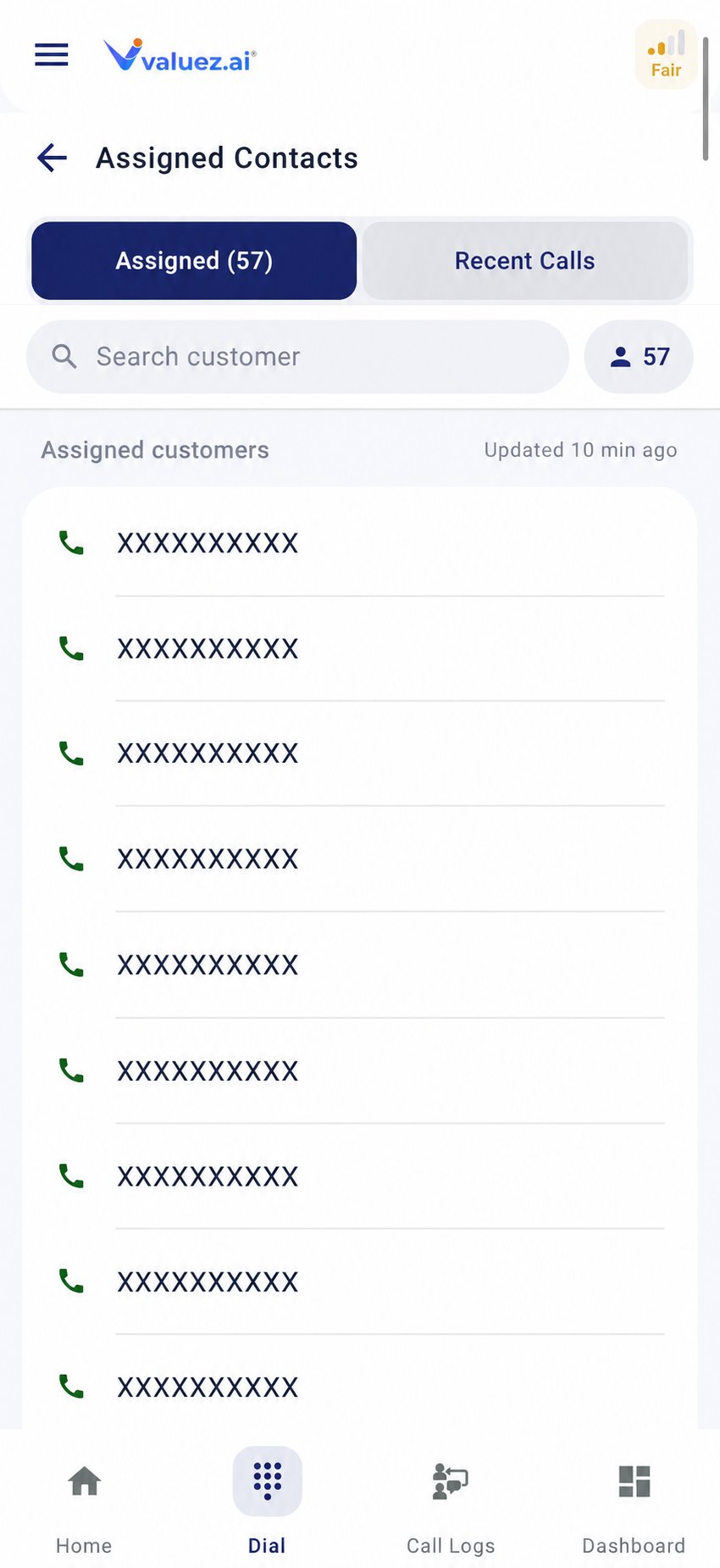
The screen has two useful lists:
* **Assigned** — customers your manager has assigned to you.
* **Recent Calls** — numbers you called recently.
Managers can add contacts individually or upload a **CSV, XLS, or XLSX** file in the Valuez web dashboard. Assigned contacts appear in the app after it synchronizes.
If the list is empty, check your internet connection and refresh the app. If it remains empty, ask your manager to confirm the assignment.
## Call an assigned customer
1. Open **Dial → Assigned**.
2. Find the customer you want to call.
3. Review the displayed name and number.
4. Tap **Call**.
5. Speak with the customer and end the call normally.
6. Open **Call Logs** when the call finishes.
7. Update the customer stage, call status, remark, and follow-up as needed.
The call can take a short time to appear in Call Logs. Keep the app connected while it saves the call details.
## Place a direct call
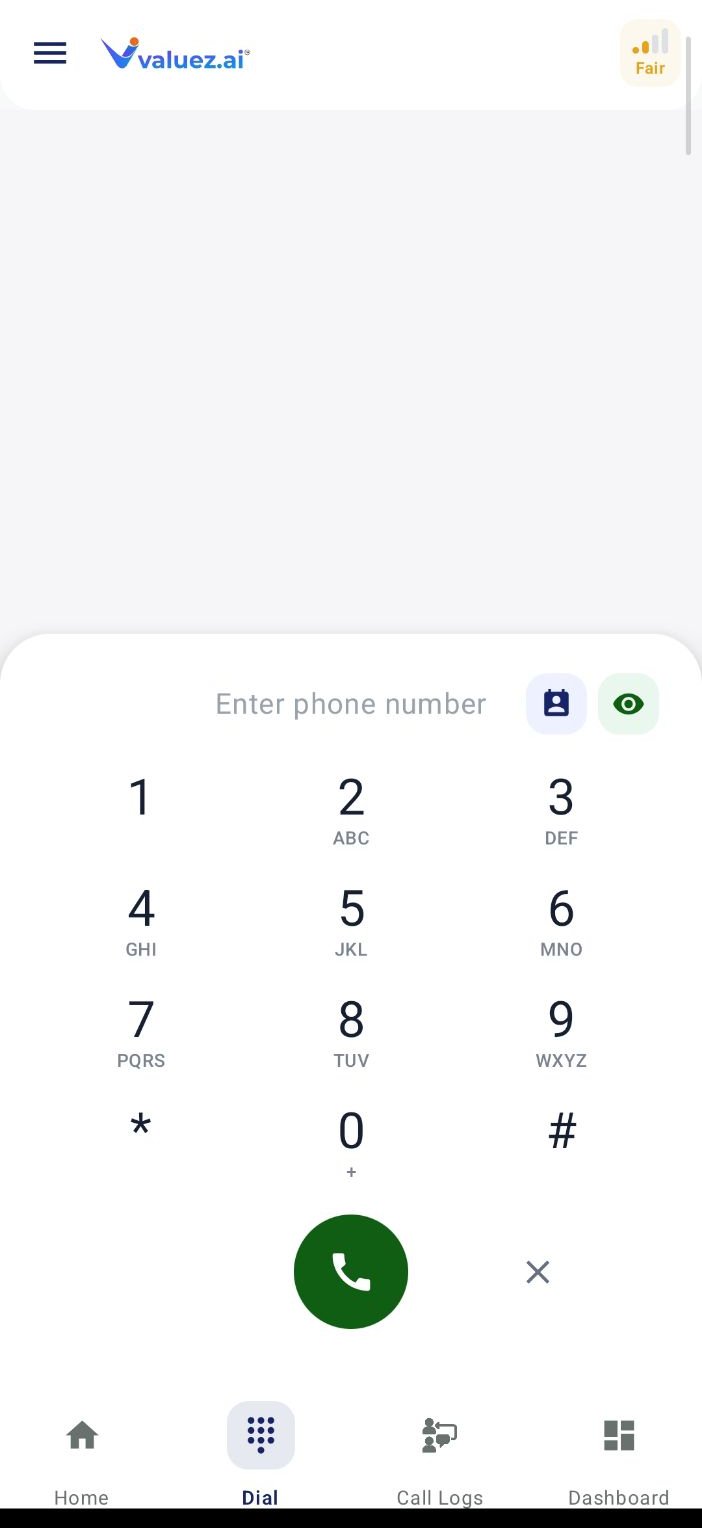
Use the dial pad when the number is not in your assigned list.
1. Open **Dial** and select the dial pad.
2. Enter the complete phone number.
3. Check the number before calling.
4. Tap the green **Call** button.
5. After the call, check **Call Logs** and save any available customer details or next step.
## Understand the Dial screen
The screen has two useful lists:
* **Assigned** — customers your manager has assigned to you.
* **Recent Calls** — numbers you called recently.
Managers can add contacts individually or upload a **CSV, XLS, or XLSX** file in the Valuez web dashboard. Assigned contacts appear in the app after it synchronizes.
If the list is empty, check your internet connection and refresh the app. If it remains empty, ask your manager to confirm the assignment.
## Call an assigned customer
1. Open **Dial → Assigned**.
2. Find the customer you want to call.
3. Review the displayed name and number.
4. Tap **Call**.
5. Speak with the customer and end the call normally.
6. Open **Call Logs** when the call finishes.
7. Update the customer stage, call status, remark, and follow-up as needed.
The call can take a short time to appear in Call Logs. Keep the app connected while it saves the call details.
## Place a direct call
Use the dial pad when the number is not in your assigned list.
1. Open **Dial** and select the dial pad.
2. Enter the complete phone number.
3. Check the number before calling.
4. Tap the green **Call** button.
5. After the call, check **Call Logs** and save any available customer details or next step.
 A directly dialed number may not contain a customer name or full CRM details. Add or correct those details when the app provides the option.
## If your team uses automatic dialing
Automatic dialing can move through assigned contacts in sequence. Before starting:
* Confirm your phone has a stable network connection.
* Keep Valuez AI open and ready.
* Use a headset only when it is safe and allowed by your organization.
* Stop the sequence if you need time to finish notes or a follow-up.
* Review the saved result before moving to the next customer.
Availability depends on your company plan and the permissions assigned to your account.
## Record the outcome while it is fresh
After each important call:
1. Open the customer in **Call Logs**.
2. Select **Update Stage**.
3. Choose the stage that reflects the customer’s current position.
4. Select the result of this call, such as Connected, Busy, or Call Back Later.
5. Add a short remark with the customer’s need and your next action.
6. Schedule a follow-up if a date or time was agreed.
Examples of useful remarks:
* `Asked for brochure; call tomorrow after 3 PM.`
* `Interested in Model X, quantity 5; needs price by Friday.`
* `Wrong number; do not call again.`
## When calling does not work
| Problem | What to check |
| - | - |
| Tapping Call opens another app | Make Valuez AI the default phone app |
| Assigned contacts do not appear | Check internet access, sign in again, then ask your manager to verify assignment |
| Call ends but no log appears | Allow Phone and Call Log permissions, then repeat an approved test call |
| Recording is missing | Check **Call Recording Settings** before the next call |
| Customer is busy or unreachable | Save the correct call status and create a follow-up instead of repeatedly calling |
Open summaries, transcripts, history, CRM details, and follow-up actions.
This documentation is built and hosted on [Mintlify](https://mintlify.com), a developer documentation platform.
A directly dialed number may not contain a customer name or full CRM details. Add or correct those details when the app provides the option.
## If your team uses automatic dialing
Automatic dialing can move through assigned contacts in sequence. Before starting:
* Confirm your phone has a stable network connection.
* Keep Valuez AI open and ready.
* Use a headset only when it is safe and allowed by your organization.
* Stop the sequence if you need time to finish notes or a follow-up.
* Review the saved result before moving to the next customer.
Availability depends on your company plan and the permissions assigned to your account.
## Record the outcome while it is fresh
After each important call:
1. Open the customer in **Call Logs**.
2. Select **Update Stage**.
3. Choose the stage that reflects the customer’s current position.
4. Select the result of this call, such as Connected, Busy, or Call Back Later.
5. Add a short remark with the customer’s need and your next action.
6. Schedule a follow-up if a date or time was agreed.
Examples of useful remarks:
* `Asked for brochure; call tomorrow after 3 PM.`
* `Interested in Model X, quantity 5; needs price by Friday.`
* `Wrong number; do not call again.`
## When calling does not work
| Problem | What to check |
| - | - |
| Tapping Call opens another app | Make Valuez AI the default phone app |
| Assigned contacts do not appear | Check internet access, sign in again, then ask your manager to verify assignment |
| Call ends but no log appears | Allow Phone and Call Log permissions, then repeat an approved test call |
| Recording is missing | Check **Call Recording Settings** before the next call |
| Customer is busy or unreachable | Save the correct call status and create a follow-up instead of repeatedly calling |
Open summaries, transcripts, history, CRM details, and follow-up actions.
This documentation is built and hosted on [Mintlify](https://mintlify.com), a developer documentation platform.