> ## Documentation Index
> Fetch the complete documentation index at: https://docs.valuez.ai/llms.txt
> Use this file to discover all available pages before exploring further.
# Sign In and Get Ready
> Sign in to the Sarvani Sales App and complete your first-use checks
Complete the [installation guide](/sarvani-installation) before signing in for the first time. Your company administrator creates your account and assigns your customers from the Valuez web dashboard.
## What you need
* The email address registered by your administrator
* Your password or account invitation
* An active internet connection
* The Valuez AI app installed on your Android phone
 ## Sign in
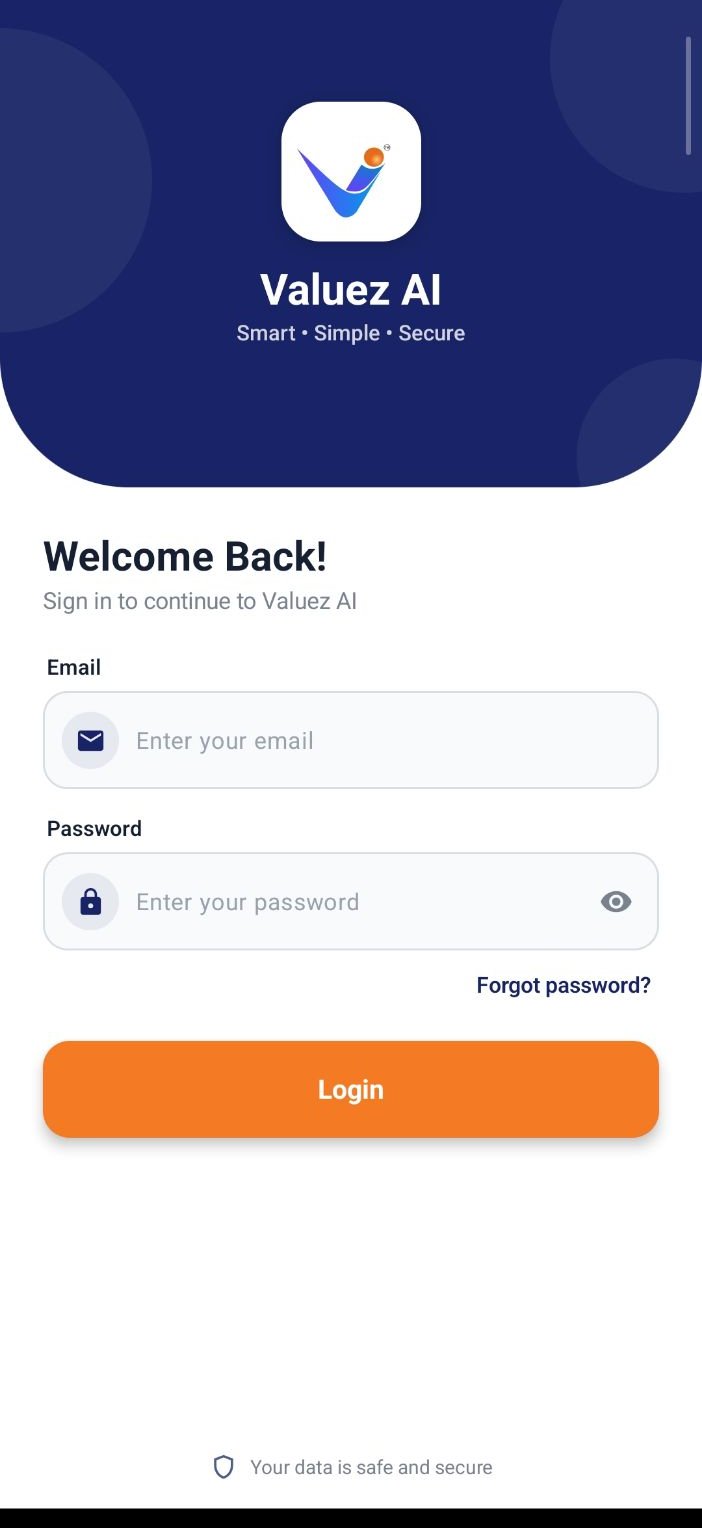
1. Open **Valuez AI**.
2. Enter your registered email address.
3. Enter your password.
4. Tap **Login**.
5. Wait for your workspace and assigned contacts to load.
If you did not receive account details, contact your company administrator. Do not create a second account with another email because it may not be connected to your assigned team.
## Check the four main tabs
After signing in, use the bottom navigation to move between:
1. **Home** — daily information and shortcuts.
2. **Dial** — assigned contacts, recent calls, and the dial pad.
3. **Call Logs** — previous calls and customer actions.
4. **Dashboard** — call, talk-time, and SMS activity.
Open each tab once to confirm the account has loaded correctly. If **Dial** is empty, your administrator may still need to assign contacts.
## Confirm phone access
Open the side menu and review **Call Recording Settings**.
## Sign in
1. Open **Valuez AI**.
2. Enter your registered email address.
3. Enter your password.
4. Tap **Login**.
5. Wait for your workspace and assigned contacts to load.
If you did not receive account details, contact your company administrator. Do not create a second account with another email because it may not be connected to your assigned team.
## Check the four main tabs
After signing in, use the bottom navigation to move between:
1. **Home** — daily information and shortcuts.
2. **Dial** — assigned contacts, recent calls, and the dial pad.
3. **Call Logs** — previous calls and customer actions.
4. **Dashboard** — call, talk-time, and SMS activity.
Open each tab once to confirm the account has loaded correctly. If **Dial** is empty, your administrator may still need to assign contacts.
## Confirm phone access
Open the side menu and review **Call Recording Settings**.
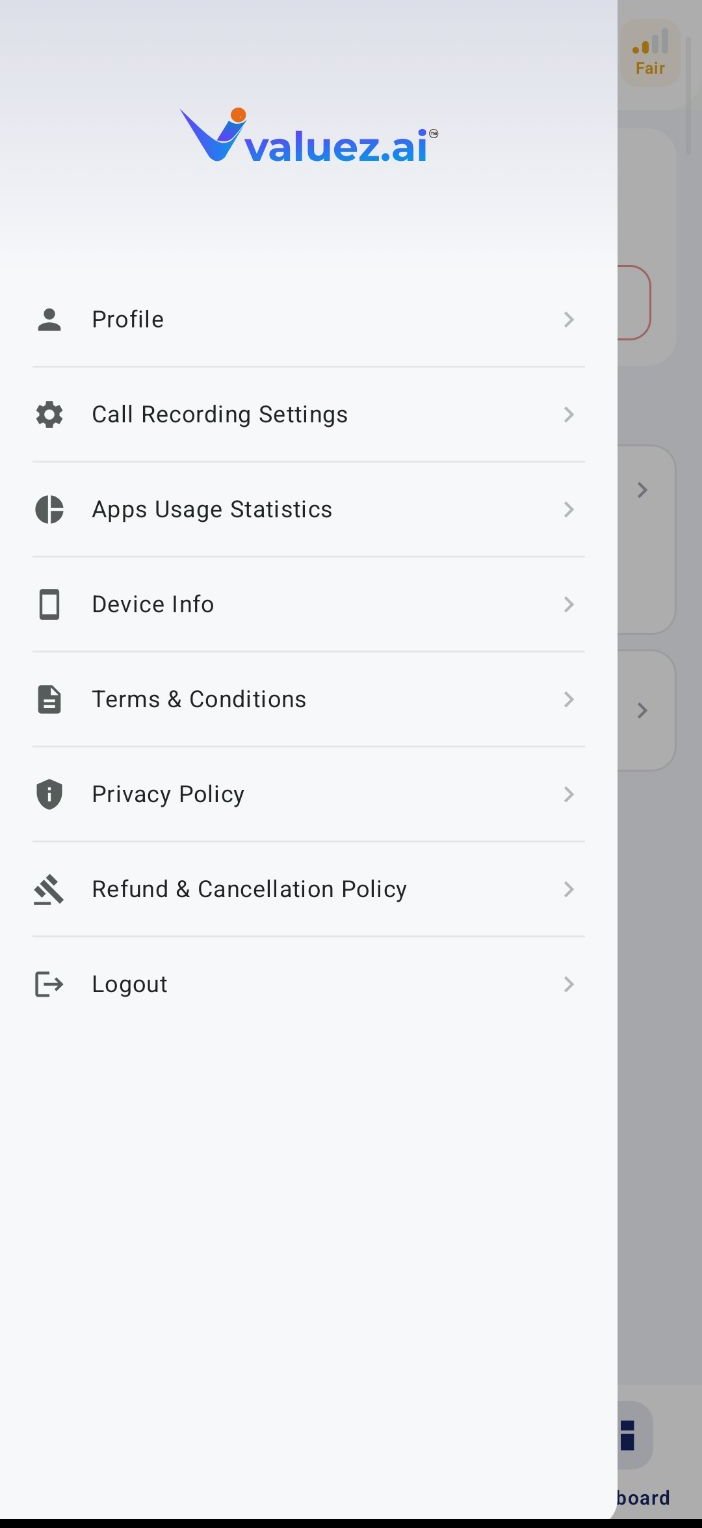 Confirm that:
* Valuez AI is the default phone app.
* Recording is enabled if your company uses recorded calls.
* Call-audio access shows active.
* Accessibility and required Android permissions remain enabled.
If any item is inactive, return to [Install the Android App](/sarvani-installation) and complete the related step.
## Place a test call
Before calling a customer, make one approved test call:
1. Open **Dial** and enter the test number.
2. Place a short call.
3. End the call and open **Call Logs**.
4. Confirm the number, time, and duration are visible.
5. If recording is enabled, confirm that the audio is available and clear.
Summaries and transcripts may take a short time to appear after a recorded call. Their quality depends on audio clarity and the available recording.
## Sign-in and setup problems
| Problem | What to do |
| - | - |
| Email or password is rejected | Re-enter the registered email, use password recovery if available, or contact your administrator |
| Workspace does not load | Check Wi-Fi or mobile data, close the app, and sign in again |
| Dial list is empty | Ask your manager to assign contacts in **Sales Team → Team Members** |
| Calls use the phone's old dialer | Make Valuez AI the default phone app |
| Call does not appear in Call Logs | Recheck Phone and Call Log permissions, then repeat the test |
| Recording is missing | Open **Call Recording Settings** and confirm both recording and call-audio access |
Understand calls, talk time, SMS totals, and date filters.
Work through the assigned list and record each next step.
This documentation is built and hosted on [Mintlify](https://mintlify.com), a developer documentation platform.
Confirm that:
* Valuez AI is the default phone app.
* Recording is enabled if your company uses recorded calls.
* Call-audio access shows active.
* Accessibility and required Android permissions remain enabled.
If any item is inactive, return to [Install the Android App](/sarvani-installation) and complete the related step.
## Place a test call
Before calling a customer, make one approved test call:
1. Open **Dial** and enter the test number.
2. Place a short call.
3. End the call and open **Call Logs**.
4. Confirm the number, time, and duration are visible.
5. If recording is enabled, confirm that the audio is available and clear.
Summaries and transcripts may take a short time to appear after a recorded call. Their quality depends on audio clarity and the available recording.
## Sign-in and setup problems
| Problem | What to do |
| - | - |
| Email or password is rejected | Re-enter the registered email, use password recovery if available, or contact your administrator |
| Workspace does not load | Check Wi-Fi or mobile data, close the app, and sign in again |
| Dial list is empty | Ask your manager to assign contacts in **Sales Team → Team Members** |
| Calls use the phone's old dialer | Make Valuez AI the default phone app |
| Call does not appear in Call Logs | Recheck Phone and Call Log permissions, then repeat the test |
| Recording is missing | Open **Call Recording Settings** and confirm both recording and call-audio access |
Understand calls, talk time, SMS totals, and date filters.
Work through the assigned list and record each next step.
This documentation is built and hosted on [Mintlify](https://mintlify.com), a developer documentation platform.