> ## Documentation Index
> Fetch the complete documentation index at: https://docs.valuez.ai/llms.txt
> Use this file to discover all available pages before exploring further.
# Install the Android App
> Download the Valuez APK, install it safely, and complete one-time phone setup
The Valuez AI mobile app is distributed as an **Android APK** and is not currently available through Google Play. Download it only from your signed-in Valuez dashboard or from a trusted company administrator.
Do not install a Valuez APK received from an unknown website, message, or person. If you are unsure, ask your administrator to share the official file again.
## Before you begin
You need:
* An Android phone with internet access
* Your Valuez account details
* Access to the Valuez web dashboard or the APK supplied by your administrator
* A Windows computer and USB cable if call recording needs manual activation
Allow 10–15 minutes for installation. Call-recording activation may take a little longer.
## 1. Download the official APK
If you can access the Valuez web dashboard:
1. Sign in to Valuez on your computer.
2. Open **Sales Team**.
3. Under **Help & Resources**, select **Download App**.
4. Wait for `Valuez.apk` to finish downloading.
5. Transfer the file to the Android phone if you downloaded it on a computer.
If you cannot see **Download App**, ask your company administrator to download and share the approved APK.
## 2. Allow installation on Android
1. On the phone, open **Files** or **Downloads**.
2. Tap `Valuez.apk`.
3. If Android blocks the installer, tap **Settings** when prompted.
4. Enable **Allow from this source** for the Files app or browser you used.
5. Return to the installer and tap **Install**.
Turn **Allow from this source** off again after installation if your company security policy requires it.
### If Google Play Protect blocks the APK
Some phones may block an APK that was installed outside Google Play.
1. Open the **Google Play Store**.
2. Tap your profile picture, then open **Play Protect**.
3. Open **Settings**.
4. Temporarily turn off **Scan apps with Play Protect** if it prevents the approved APK from installing.
5. Install `Valuez.apk`.
6. Return to Play Protect and turn scanning back on.
Only use this step for the official APK supplied through Valuez or your administrator.
## 3. Allow restricted settings when requested
Accessibility permission may be blocked for an app installed from an APK.
1. Open **Phone Settings → Apps → Valuez AI**.
2. Tap the three-dot menu in the top-right corner.
3. Select **Allow restricted settings**.
4. Enter the phone password or PIN if Android asks for it.
Menu names differ slightly by phone manufacturer and Android version.
## 4. Make Valuez AI the default phone app
1. Open **Phone Settings → Apps → Default apps → Phone app**.
2. Select **Valuez AI**.
3. Return to Valuez and confirm that the default-phone status is active.
Valuez must be the default phone app for its calling workflow to work correctly.
## 5. Enable accessibility
1. In Valuez, open the recording or setup screen and tap the accessibility option.
2. Android opens **Settings → Accessibility → Installed apps**.
3. Select **Valuez AI**.
4. Turn access on and confirm the permission.
## 6. Allow app permissions
When prompted, allow the permissions used for your work:
* **Phone** and **Call logs** — place calls and show call history
* **Contacts** — display customer names and contact details
* **Microphone** — support call recording and analysis
* **Notifications** — show follow-ups and app status
* **SMS** — show call-and-message activity where enabled by your company
If you denied a required permission, open **Phone Settings → Apps → Valuez AI → Permissions** and enable it there.
## 7. Activate call recording when it shows “Not active”
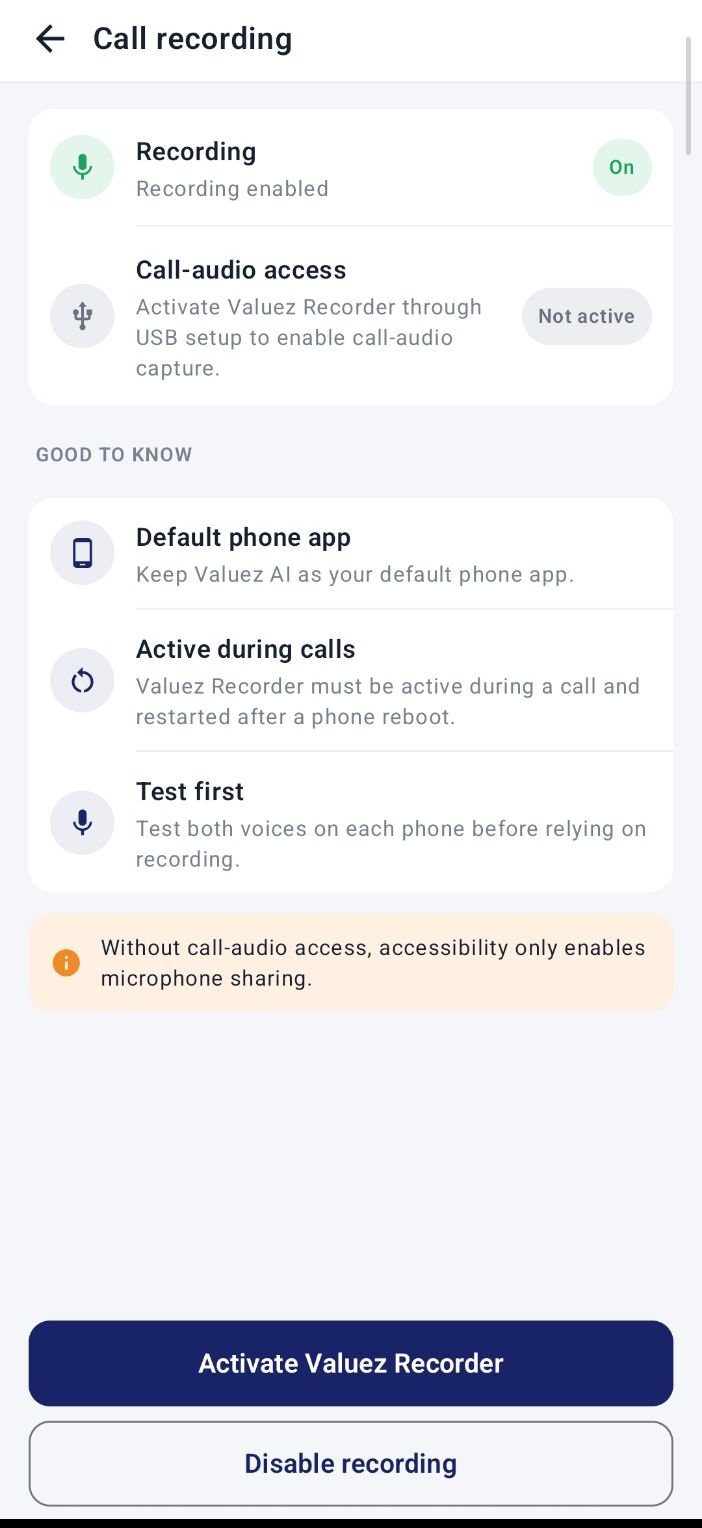 First open **Valuez AI → menu → Call Recording Settings**. If **Call-audio access** already shows **Active**, you can skip this section.
If it shows **Not active**, complete this one-time Windows setup with your administrator:
1. Enable **Developer options** on the Android phone.
2. Turn on **USB debugging**.
3. Download the official [Android SDK Platform Tools](https://developer.android.com/tools/releases/platform-tools) on the Windows computer.
4. Extract the downloaded folder, for example to `Desktop\platform-tools`.
5. Connect the unlocked phone to the computer with a USB cable.
6. Accept **Allow USB debugging** on the phone.
7. Obtain the approved `Activate-ValuezRecorder.ps1` file from your Valuez administrator or support team and save it on the Desktop.
8. Open PowerShell and run:
```powershell theme={null}
powershell -ExecutionPolicy Bypass -File "$env:USERPROFILE\Desktop\Activate-ValuezRecorder.ps1" -AdbPath "$env:USERPROFILE\Desktop\platform-tools\adb.exe"
```
Run this command only with the script supplied by your administrator. A successful setup reports that the Valuez recorder is active.
## 8. Verify the setup
Before starting customer calls:
* Open Valuez and sign in.
* Confirm **Valuez AI** is the default phone app.
* Confirm accessibility is enabled.
* Open **Call Recording Settings** and confirm recording is enabled and call-audio access is active.
* Place a short test call with permission from the other participant.
* Open **Call Logs** and verify that the call appears.
* Check that the recording captures both sides clearly where recording is permitted.
After a phone restart, open Valuez and check the recording status before the first work call. Follow your organization’s consent and recording policy for every call.
## Troubleshooting
| Problem | What to check |
| - | - |
| APK will not install | Confirm it is the official file, allow installation from the source app, and check available storage |
| Accessibility switch is unavailable | Enable **Allow restricted settings** in Valuez app information |
| Calls open in another dialer | Select Valuez AI under **Default apps → Phone app** |
| USB command cannot find the phone | Unlock the phone, reconnect the cable, accept USB debugging, and try a data-capable USB port |
| Recording status remains inactive | Recheck Platform Tools and the script path, then ask your administrator to repeat activation |
| Only one voice is recorded | Confirm call-audio access is active and make another test call before customer use |
Sign in, check the four main tabs, and prepare for your first customer call.
This documentation is built and hosted on [Mintlify](https://mintlify.com), a developer documentation platform.
First open **Valuez AI → menu → Call Recording Settings**. If **Call-audio access** already shows **Active**, you can skip this section.
If it shows **Not active**, complete this one-time Windows setup with your administrator:
1. Enable **Developer options** on the Android phone.
2. Turn on **USB debugging**.
3. Download the official [Android SDK Platform Tools](https://developer.android.com/tools/releases/platform-tools) on the Windows computer.
4. Extract the downloaded folder, for example to `Desktop\platform-tools`.
5. Connect the unlocked phone to the computer with a USB cable.
6. Accept **Allow USB debugging** on the phone.
7. Obtain the approved `Activate-ValuezRecorder.ps1` file from your Valuez administrator or support team and save it on the Desktop.
8. Open PowerShell and run:
```powershell theme={null}
powershell -ExecutionPolicy Bypass -File "$env:USERPROFILE\Desktop\Activate-ValuezRecorder.ps1" -AdbPath "$env:USERPROFILE\Desktop\platform-tools\adb.exe"
```
Run this command only with the script supplied by your administrator. A successful setup reports that the Valuez recorder is active.
## 8. Verify the setup
Before starting customer calls:
* Open Valuez and sign in.
* Confirm **Valuez AI** is the default phone app.
* Confirm accessibility is enabled.
* Open **Call Recording Settings** and confirm recording is enabled and call-audio access is active.
* Place a short test call with permission from the other participant.
* Open **Call Logs** and verify that the call appears.
* Check that the recording captures both sides clearly where recording is permitted.
After a phone restart, open Valuez and check the recording status before the first work call. Follow your organization’s consent and recording policy for every call.
## Troubleshooting
| Problem | What to check |
| - | - |
| APK will not install | Confirm it is the official file, allow installation from the source app, and check available storage |
| Accessibility switch is unavailable | Enable **Allow restricted settings** in Valuez app information |
| Calls open in another dialer | Select Valuez AI under **Default apps → Phone app** |
| USB command cannot find the phone | Unlock the phone, reconnect the cable, accept USB debugging, and try a data-capable USB port |
| Recording status remains inactive | Recheck Platform Tools and the script path, then ask your administrator to repeat activation |
| Only one voice is recorded | Confirm call-audio access is active and make another test call before customer use |
Sign in, check the four main tabs, and prepare for your first customer call.
This documentation is built and hosted on [Mintlify](https://mintlify.com), a developer documentation platform.