> ## Documentation Index
> Fetch the complete documentation index at: https://docs.valuez.ai/llms.txt
> Use this file to discover all available pages before exploring further.
# Device, Network, and Recording Status
> Check phone readiness, SIM information, app permissions, and call-recording status
Reliable call records depend on the phone, network, permissions, and recording setup. Check these items at the start of the day and whenever a call fails to appear correctly.
## Read the Dashboard status
The app Dashboard can show call and SMS activity together with phone status information such as network signal and battery level.
Use the date controls—such as **Today**, **Week**, **Month**, or a custom period—to separate current activity from older records.
If the network indicator is weak:
1. Move to an area with better signal.
2. Confirm mobile data or Wi-Fi is working.
3. Wait for the app to synchronize before starting the next call.
## Review Device Info
Open the side menu and select **Device Info**.
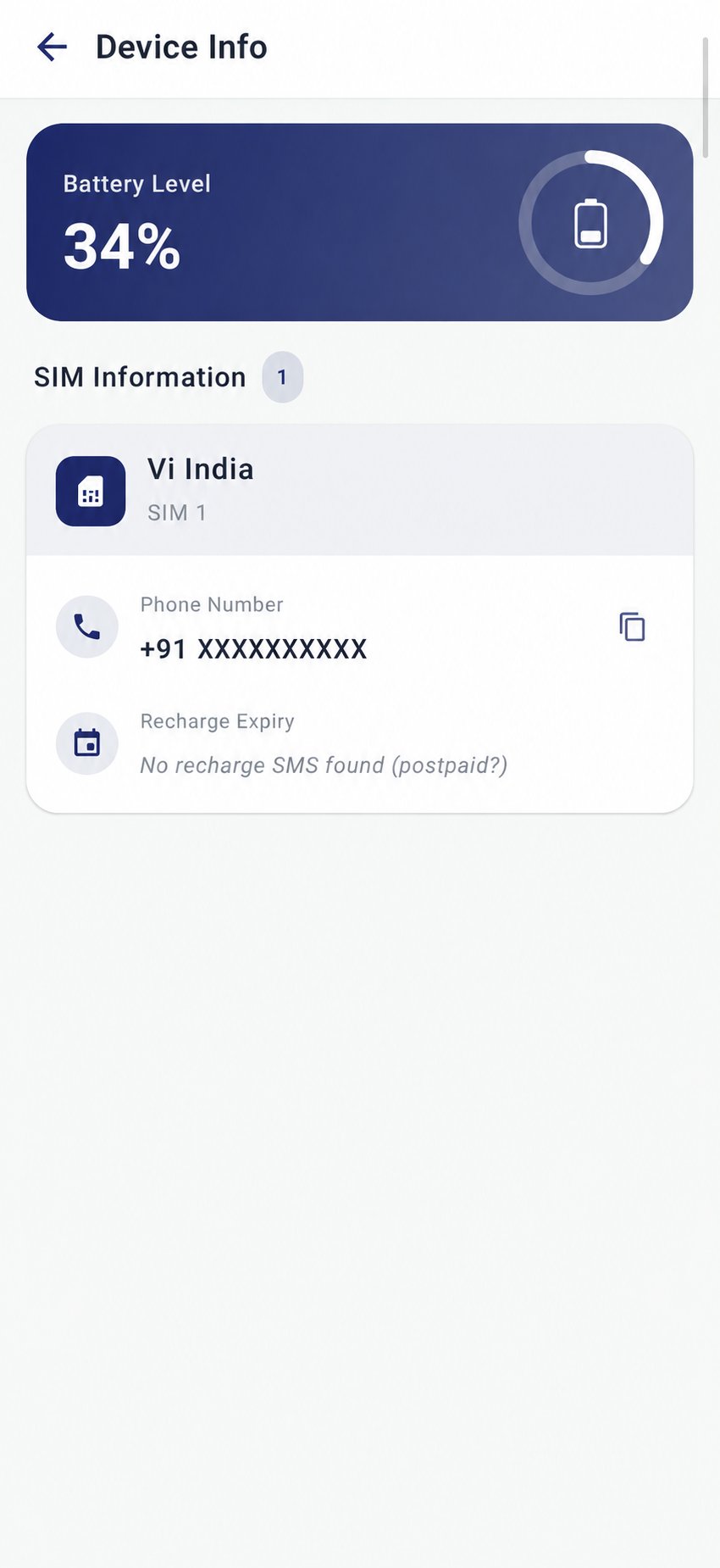 Depending on the phone and available permissions, this screen can show:
* Battery level
* SIM provider
* SIM phone number
* Recharge-expiry information
Use these details as a readiness check. If information is missing, confirm that the SIM is active and that the app has the required Phone permissions. Recharge information may depend on the carrier and device data available to the app.
## Check call recording
Open **menu → Call Recording Settings**.
Depending on the phone and available permissions, this screen can show:
* Battery level
* SIM provider
* SIM phone number
* Recharge-expiry information
Use these details as a readiness check. If information is missing, confirm that the SIM is active and that the app has the required Phone permissions. Recharge information may depend on the carrier and device data available to the app.
## Check call recording
Open **menu → Call Recording Settings**.
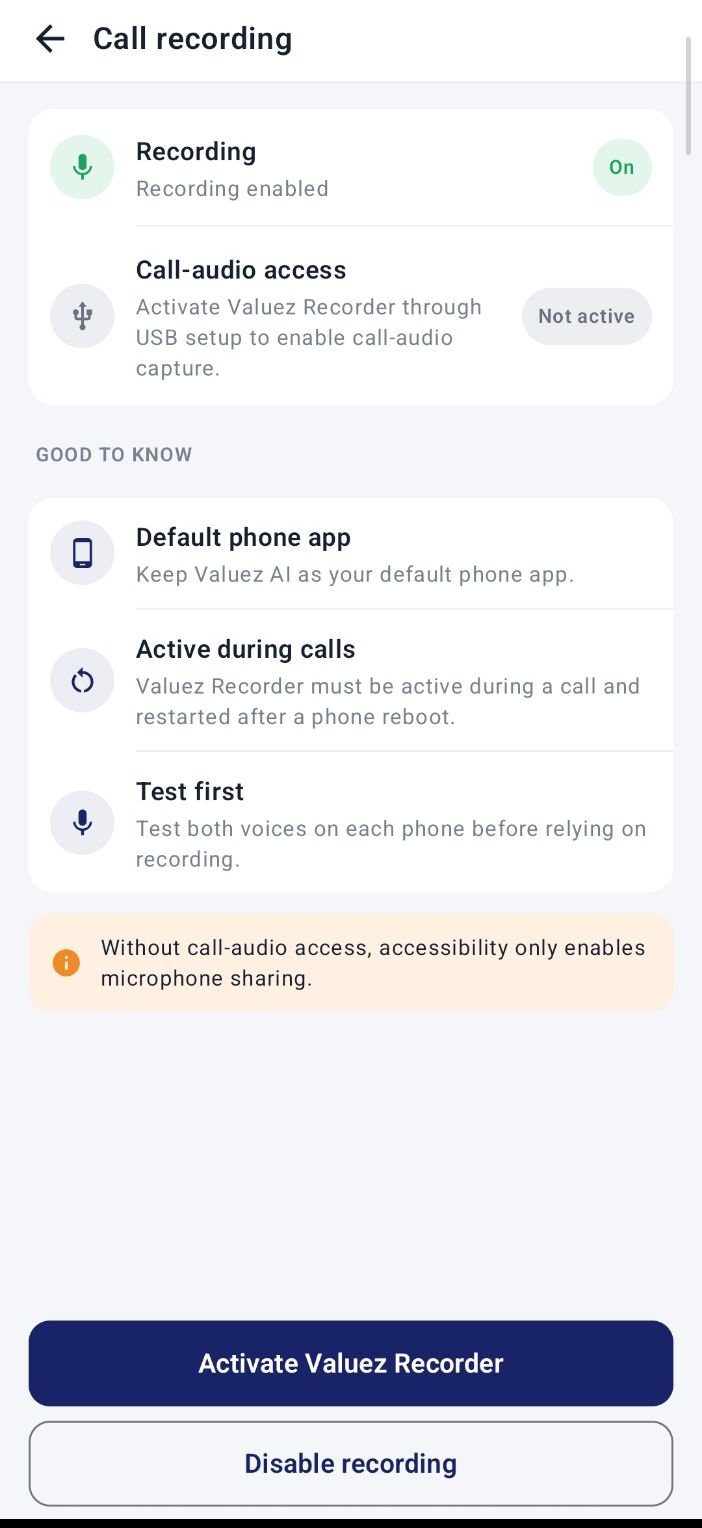 Confirm:
* **Recording** is enabled when your organization uses recorded calls.
* **Call-audio access** shows active.
* Valuez AI is the default phone app.
* The app remains active during calls.
If call-audio access shows **Not active**, follow the recorder steps in [Install the Android App](/sarvani-installation) or ask your administrator for help.
## Understand missing summaries or transcripts
A call can appear in Call Logs even when its recording, summary, or transcript is unavailable. Common causes include:
* Recording was disabled or inactive during the call.
* Microphone or Phone permission was removed.
* The call was too short or the audio was unclear.
* The phone lost network access before synchronization.
* Processing is still in progress.
Add a manual remark immediately if the record is incomplete. Do not wait for an automatic summary before saving an agreed follow-up.
## Apps Usage Statistics
The side menu includes **Apps Usage Statistics** where enabled. Use it only according to your organization’s policy. If Android asks for usage-access permission, review the request and follow your administrator’s instructions.
## Start-of-day checklist
* [ ] Phone has enough battery for planned calls
* [ ] SIM is active and network signal is stable
* [ ] Valuez AI is the default phone app
* [ ] Phone, Call Log, Contacts, Microphone, Notification, and required SMS permissions are enabled
* [ ] Accessibility is enabled
* [ ] Recording and call-audio access are active when required
* [ ] A test call appears correctly in Call Logs
## When you need help
| Issue | First action |
| - | - |
| App cannot place calls | Check the active SIM and default phone app |
| Calls are not synchronizing | Check internet access and reopen the app |
| Recording is inactive | Open Call Recording Settings and follow the installation guide |
| Battery or SIM details are missing | Recheck permissions and restart the app |
| Assigned contacts are missing | Ask your manager to verify the assignment |
| Summary or transcript is missing | Check the recording, wait for processing, and save a manual remark |
Review the complete mobile workflow.
Learn how managers assign contacts and review sales activity.
This documentation is built and hosted on [Mintlify](https://mintlify.com), a developer documentation platform.
Confirm:
* **Recording** is enabled when your organization uses recorded calls.
* **Call-audio access** shows active.
* Valuez AI is the default phone app.
* The app remains active during calls.
If call-audio access shows **Not active**, follow the recorder steps in [Install the Android App](/sarvani-installation) or ask your administrator for help.
## Understand missing summaries or transcripts
A call can appear in Call Logs even when its recording, summary, or transcript is unavailable. Common causes include:
* Recording was disabled or inactive during the call.
* Microphone or Phone permission was removed.
* The call was too short or the audio was unclear.
* The phone lost network access before synchronization.
* Processing is still in progress.
Add a manual remark immediately if the record is incomplete. Do not wait for an automatic summary before saving an agreed follow-up.
## Apps Usage Statistics
The side menu includes **Apps Usage Statistics** where enabled. Use it only according to your organization’s policy. If Android asks for usage-access permission, review the request and follow your administrator’s instructions.
## Start-of-day checklist
* [ ] Phone has enough battery for planned calls
* [ ] SIM is active and network signal is stable
* [ ] Valuez AI is the default phone app
* [ ] Phone, Call Log, Contacts, Microphone, Notification, and required SMS permissions are enabled
* [ ] Accessibility is enabled
* [ ] Recording and call-audio access are active when required
* [ ] A test call appears correctly in Call Logs
## When you need help
| Issue | First action |
| - | - |
| App cannot place calls | Check the active SIM and default phone app |
| Calls are not synchronizing | Check internet access and reopen the app |
| Recording is inactive | Open Call Recording Settings and follow the installation guide |
| Battery or SIM details are missing | Recheck permissions and restart the app |
| Assigned contacts are missing | Ask your manager to verify the assignment |
| Summary or transcript is missing | Check the recording, wait for processing, and save a manual remark |
Review the complete mobile workflow.
Learn how managers assign contacts and review sales activity.
This documentation is built and hosted on [Mintlify](https://mintlify.com), a developer documentation platform.