> ## Documentation Index
> Fetch the complete documentation index at: https://docs.valuez.ai/llms.txt
> Use this file to discover all available pages before exploring further.
# Test Your AI
> Test your AI agent's responses and voice before going live with real customers.
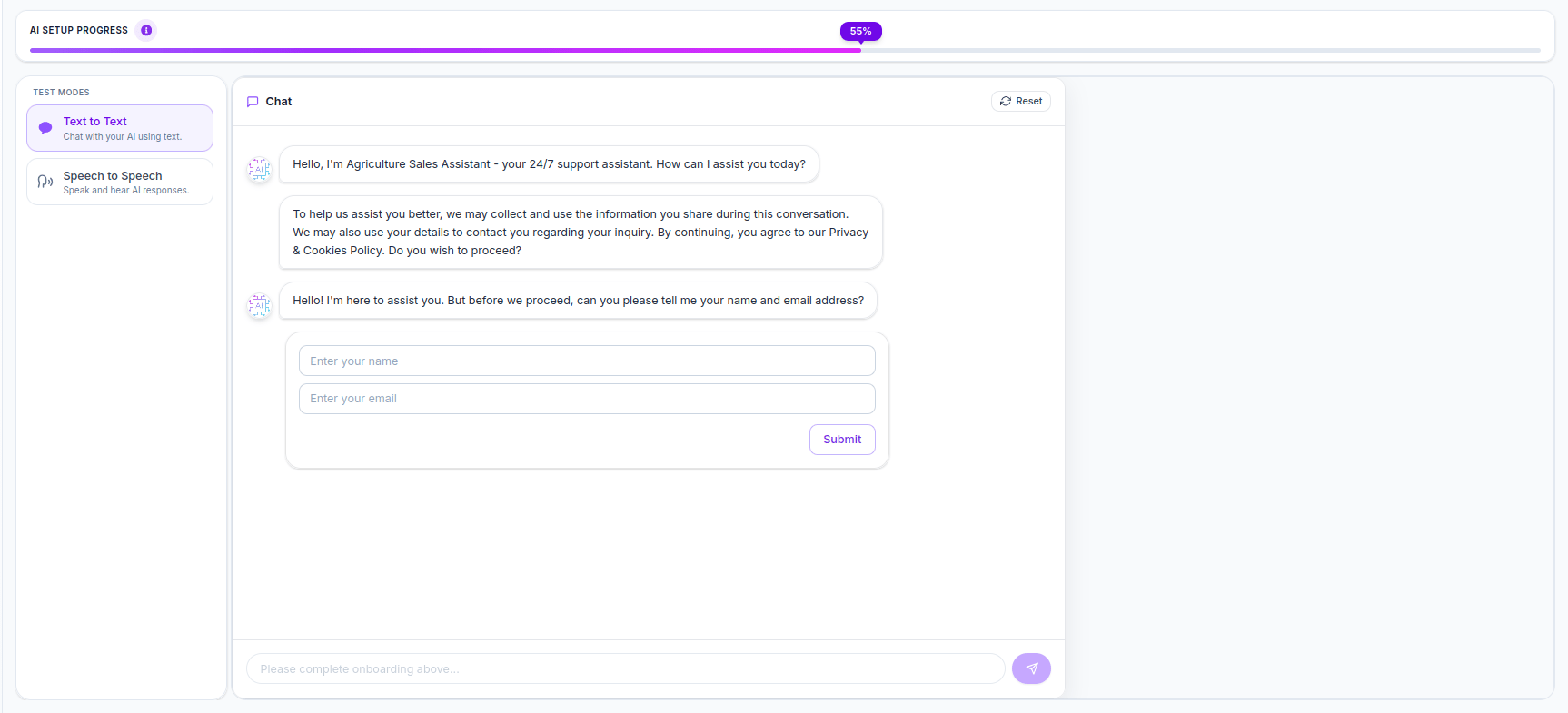
The Test Your AI tab lets you interact with your agent directly from the dashboard before putting it in front of real customers. It simulates exactly how your agent will behave on a live call - same prompt, same knowledge base, same voice.
You can access it by clicking the **Test Your AI** tab at the top of any agent's configuration screen.
 ***
## Two Test Modes
The left sidebar shows two modes under **Test Modes**:
| Mode | Interface | Best For |
| -------------------- | ---------------------------------------------- | ------------------------------------------------------------------- |
| **Text to Text** | Chat window - type messages, read responses | Quickly testing how the agent responds to specific questions |
| **Speech to Speech** | Playground - speak and hear AI voice responses | Testing the full voice experience exactly as a caller would hear it |
***
## Text to Text Mode
Text to Text opens a **Chat** interface where you type messages and see your agent's responses as text. This is the fastest way to test your agent's knowledge and behavior without making a voice call.
***
## Two Test Modes
The left sidebar shows two modes under **Test Modes**:
| Mode | Interface | Best For |
| -------------------- | ---------------------------------------------- | ------------------------------------------------------------------- |
| **Text to Text** | Chat window - type messages, read responses | Quickly testing how the agent responds to specific questions |
| **Speech to Speech** | Playground - speak and hear AI voice responses | Testing the full voice experience exactly as a caller would hear it |
***
## Text to Text Mode
Text to Text opens a **Chat** interface where you type messages and see your agent's responses as text. This is the fastest way to test your agent's knowledge and behavior without making a voice call.
 ### How to Use Text to Text
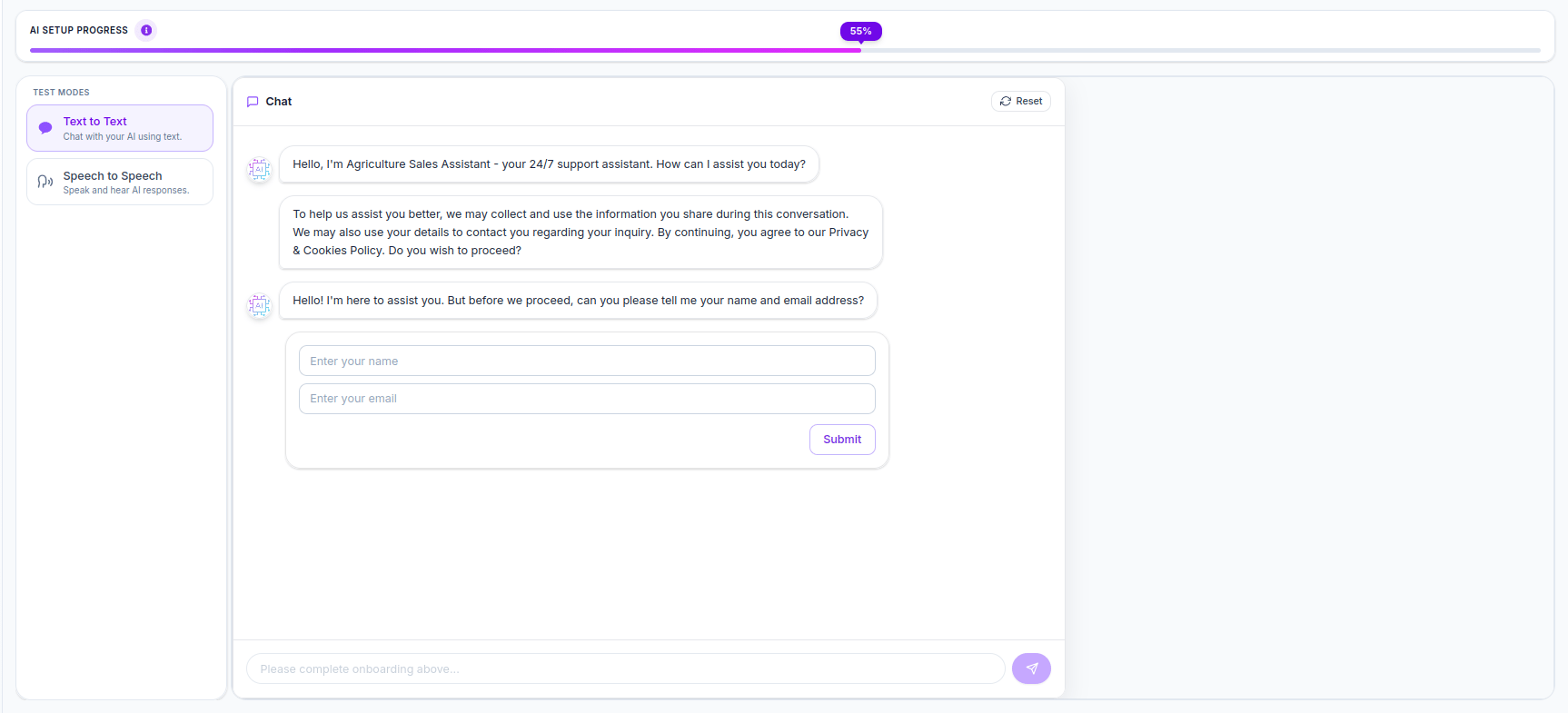
Click **Text to Text** in the left sidebar under Test Modes.
Your agent immediately fires its configured Greeting Message. This is the first thing callers hear - check that it sounds natural and matches your brand.
The agent asks for consent to collect and use conversation data. Click **Yes** to proceed. This consent screen appears for every new conversation.
The agent asks for your name and email address before the main conversation begins. Enter details and click **Submit**.
The chat input at the bottom becomes active. Type messages as if you were a real customer and read the agent's responses.
Click **Reset** (top right of the chat window) at any time to start a fresh conversation from the greeting message.
### What to Test in Text to Text
| Test Scenario | What to Type | What to Check |
| -------------------------- | ----------------------------------------------------------- | ---------------------------------------------------------- |
| **Greeting** | Nothing - it auto-fires | Does it match your configured greeting message? |
| **Common question** | Your most frequent customer question | Does the agent answer from your knowledge base accurately? |
| **Out-of-scope question** | Something your agent shouldn't know | Does it fall back gracefully without making things up? |
| **Contact/hours question** | "What are your business hours?" or "Where are you located?" | Does it read from Business Information correctly? |
| **Escalation trigger** | "I want to speak to a human" | Does it initiate a transfer correctly? |
| **Edge case** | An unusual or tricky question | Does it handle it sensibly or break? |
Test at least 5-6 different scenarios before going live. The most important one is the fallback - ask something your agent definitely doesn't know and verify it doesn't make up an answer.
***
## Speech to Speech Mode
Speech to Speech opens a **Playground** interface where you speak to your agent and hear its voice responses in real time. This is the most accurate way to test because it replicates the exact experience a real caller will have.
### How to Use Text to Text
Click **Text to Text** in the left sidebar under Test Modes.
Your agent immediately fires its configured Greeting Message. This is the first thing callers hear - check that it sounds natural and matches your brand.
The agent asks for consent to collect and use conversation data. Click **Yes** to proceed. This consent screen appears for every new conversation.
The agent asks for your name and email address before the main conversation begins. Enter details and click **Submit**.
The chat input at the bottom becomes active. Type messages as if you were a real customer and read the agent's responses.
Click **Reset** (top right of the chat window) at any time to start a fresh conversation from the greeting message.
### What to Test in Text to Text
| Test Scenario | What to Type | What to Check |
| -------------------------- | ----------------------------------------------------------- | ---------------------------------------------------------- |
| **Greeting** | Nothing - it auto-fires | Does it match your configured greeting message? |
| **Common question** | Your most frequent customer question | Does the agent answer from your knowledge base accurately? |
| **Out-of-scope question** | Something your agent shouldn't know | Does it fall back gracefully without making things up? |
| **Contact/hours question** | "What are your business hours?" or "Where are you located?" | Does it read from Business Information correctly? |
| **Escalation trigger** | "I want to speak to a human" | Does it initiate a transfer correctly? |
| **Edge case** | An unusual or tricky question | Does it handle it sensibly or break? |
Test at least 5-6 different scenarios before going live. The most important one is the fallback - ask something your agent definitely doesn't know and verify it doesn't make up an answer.
***
## Speech to Speech Mode
Speech to Speech opens a **Playground** interface where you speak to your agent and hear its voice responses in real time. This is the most accurate way to test because it replicates the exact experience a real caller will have.
 ### How to Use Speech to Speech
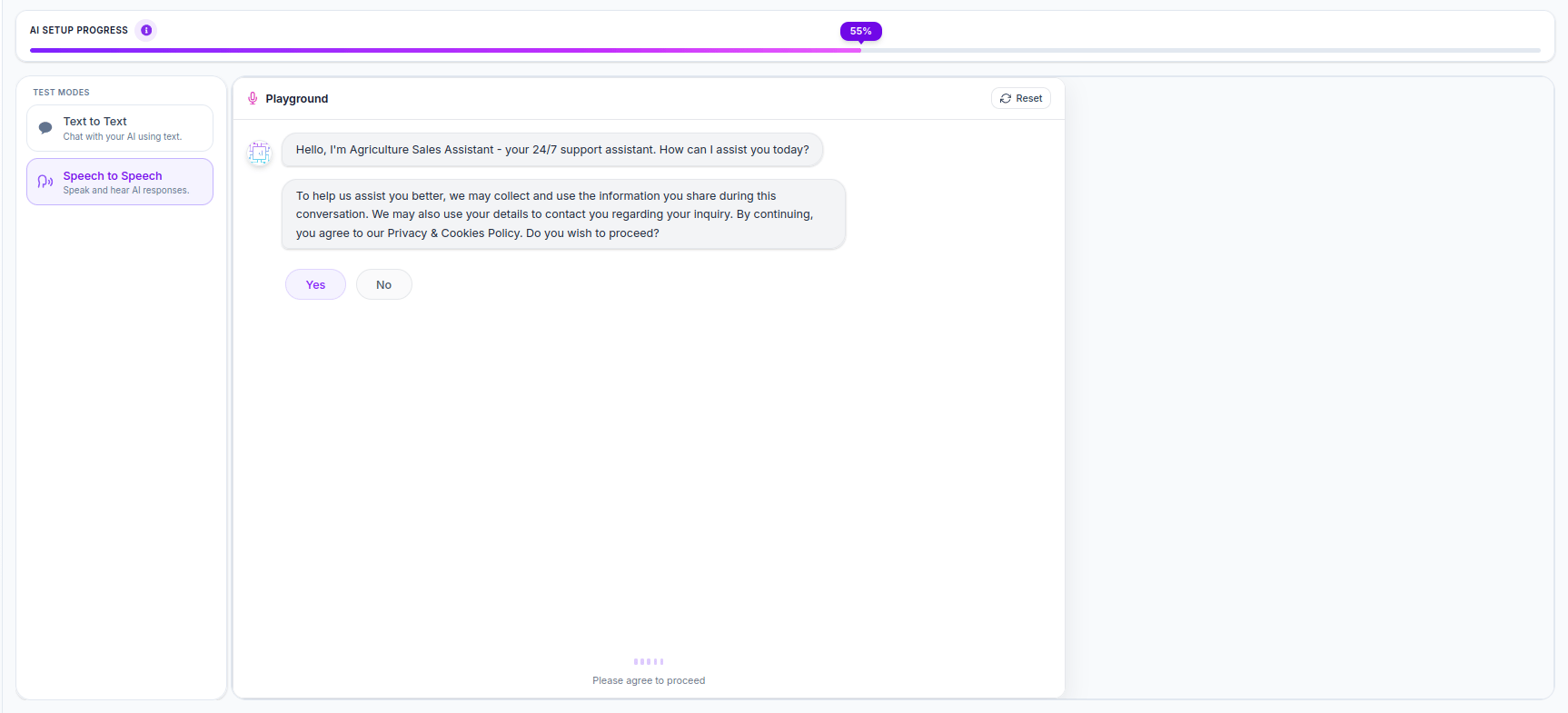
Click **Speech to Speech** in the left sidebar under Test Modes. The interface changes to **Playground** mode.
Your browser will ask for microphone permission. Click **Allow** - this is required for Speech to Speech to work.
Your agent speaks its greeting message aloud. Listen carefully - this is exactly what your callers will hear first.
The agent asks for consent. Click **Yes** to proceed.
Enter your name and email in the fields provided and click **Submit** to enter the main conversation.
Talk to your agent as a real customer would. The conversation transcript appears in the window - your words and the agent's responses are both displayed so you can review them.
Click **Reset** (top right) to start a fresh conversation from the beginning.
### What to Listen For in Speech to Speech
Beyond testing what the agent says, use Speech to Speech to evaluate how it sounds:
| What to Check | Why It Matters |
| --------------------- | ------------------------------------------------------------------------------- |
| **Greeting tone** | Does it sound welcoming or robotic? |
| **Response length** | Do responses sound natural or too long when spoken? |
| **Speech rate** | Is it too fast or too slow for comfortable listening? |
| **Voice clarity** | Is the selected voice model clear and easy to understand? |
| **Natural pauses** | Does the conversation flow naturally or feel rushed? |
| **Fallback phrasing** | When the agent doesn't know something, does the fallback message sound natural? |
If responses sound too long when spoken aloud, go back to **Basic Details → System Prompt** and add this instruction: "Keep all responses under 2 sentences." Then test again.
If the voice sounds too fast or too slow, go to **Basic Details → Voice** and adjust the **Rate of Speech** slider. 0.9 is a good starting point for Indian English callers.
***
## Comparing Both Modes
Use both modes together for the most thorough pre-launch testing:
Quickly run through all your test scenarios in text mode. It's faster, easier to iterate, and lets you test many questions in a short time.
Once text responses look good, switch to Speech to Speech to verify everything sounds right when spoken aloud. Catch issues like long responses, awkward phrasing, and voice clarity.
***
## Pre-Launch Testing Checklist
Run through this checklist before marking your agent as ready for live calls:
The first message callers hear sets the tone. It should be warm, clear, and under 2 sentences. Test it in Speech to Speech mode.
Test your top 5 most frequent customer questions. Each answer should come from your knowledge base, not from the AI's general knowledge.
Ask your agent its business hours, address, and contact number. Verify the answers match exactly what you entered in Train Your AI → Business Information.
Ask something your agent doesn't know. It should acknowledge the gap, not make up an answer, and offer to connect you with a team member.
Say "I want to speak to a human" or "Can I talk to someone?" and verify the agent initiates the transfer correctly.
In Speech to Speech mode, the conversation should feel like talking to a real assistant - not too fast, not too slow, not too formal.
Ask the agent to end the conversation and verify it delivers the configured ending message naturally.
Once all items above pass - your agent is ready to go live.
***
## Related Pages
Go back to Basic Details to make changes to your prompt, voice, or conversation messages based on test results.
Update your knowledge base if test questions are being answered incorrectly or incompletely.
Learn how to improve your system prompt based on issues you discover during testing.
After going live, use call analytics to continue improving your agent based on real conversation data.
### How to Use Speech to Speech
Click **Speech to Speech** in the left sidebar under Test Modes. The interface changes to **Playground** mode.
Your browser will ask for microphone permission. Click **Allow** - this is required for Speech to Speech to work.
Your agent speaks its greeting message aloud. Listen carefully - this is exactly what your callers will hear first.
The agent asks for consent. Click **Yes** to proceed.
Enter your name and email in the fields provided and click **Submit** to enter the main conversation.
Talk to your agent as a real customer would. The conversation transcript appears in the window - your words and the agent's responses are both displayed so you can review them.
Click **Reset** (top right) to start a fresh conversation from the beginning.
### What to Listen For in Speech to Speech
Beyond testing what the agent says, use Speech to Speech to evaluate how it sounds:
| What to Check | Why It Matters |
| --------------------- | ------------------------------------------------------------------------------- |
| **Greeting tone** | Does it sound welcoming or robotic? |
| **Response length** | Do responses sound natural or too long when spoken? |
| **Speech rate** | Is it too fast or too slow for comfortable listening? |
| **Voice clarity** | Is the selected voice model clear and easy to understand? |
| **Natural pauses** | Does the conversation flow naturally or feel rushed? |
| **Fallback phrasing** | When the agent doesn't know something, does the fallback message sound natural? |
If responses sound too long when spoken aloud, go back to **Basic Details → System Prompt** and add this instruction: "Keep all responses under 2 sentences." Then test again.
If the voice sounds too fast or too slow, go to **Basic Details → Voice** and adjust the **Rate of Speech** slider. 0.9 is a good starting point for Indian English callers.
***
## Comparing Both Modes
Use both modes together for the most thorough pre-launch testing:
Quickly run through all your test scenarios in text mode. It's faster, easier to iterate, and lets you test many questions in a short time.
Once text responses look good, switch to Speech to Speech to verify everything sounds right when spoken aloud. Catch issues like long responses, awkward phrasing, and voice clarity.
***
## Pre-Launch Testing Checklist
Run through this checklist before marking your agent as ready for live calls:
The first message callers hear sets the tone. It should be warm, clear, and under 2 sentences. Test it in Speech to Speech mode.
Test your top 5 most frequent customer questions. Each answer should come from your knowledge base, not from the AI's general knowledge.
Ask your agent its business hours, address, and contact number. Verify the answers match exactly what you entered in Train Your AI → Business Information.
Ask something your agent doesn't know. It should acknowledge the gap, not make up an answer, and offer to connect you with a team member.
Say "I want to speak to a human" or "Can I talk to someone?" and verify the agent initiates the transfer correctly.
In Speech to Speech mode, the conversation should feel like talking to a real assistant - not too fast, not too slow, not too formal.
Ask the agent to end the conversation and verify it delivers the configured ending message naturally.
Once all items above pass - your agent is ready to go live.
***
## Related Pages
Go back to Basic Details to make changes to your prompt, voice, or conversation messages based on test results.
Update your knowledge base if test questions are being answered incorrectly or incompletely.
Learn how to improve your system prompt based on issues you discover during testing.
After going live, use call analytics to continue improving your agent based on real conversation data.