> ## Documentation Index
> Fetch the complete documentation index at: https://docs.valuez.ai/llms.txt
> Use this file to discover all available pages before exploring further.
# Train Your AI
> Give your AI agent the business knowledge it needs to answer accurately and consistently.
The Train Your AI tab is where you give your agent its intelligence. Without training, your agent can only follow its system prompt. With training, it answers questions using your actual business content - products, services, FAQs, and documents - with zero hallucination.
Complete Basic Details first, then click the **Train Your AI** tab at the top of your agent configuration screen.
The left sidebar has three groups with five sections total:
**Company**
* Business Information
**Configuration**
* Service List
* Product List
**Knowledge**
* FAQ's List
* Knowledge Base Documents
Work through each section and click **Save & Next** after each one.
***
## Company: Business Information
Business Information is the foundation of your agent's knowledge. Everything you enter here gets injected directly into your agent's system prompt under Operational Parameters - your agent reads this in real time during every call.
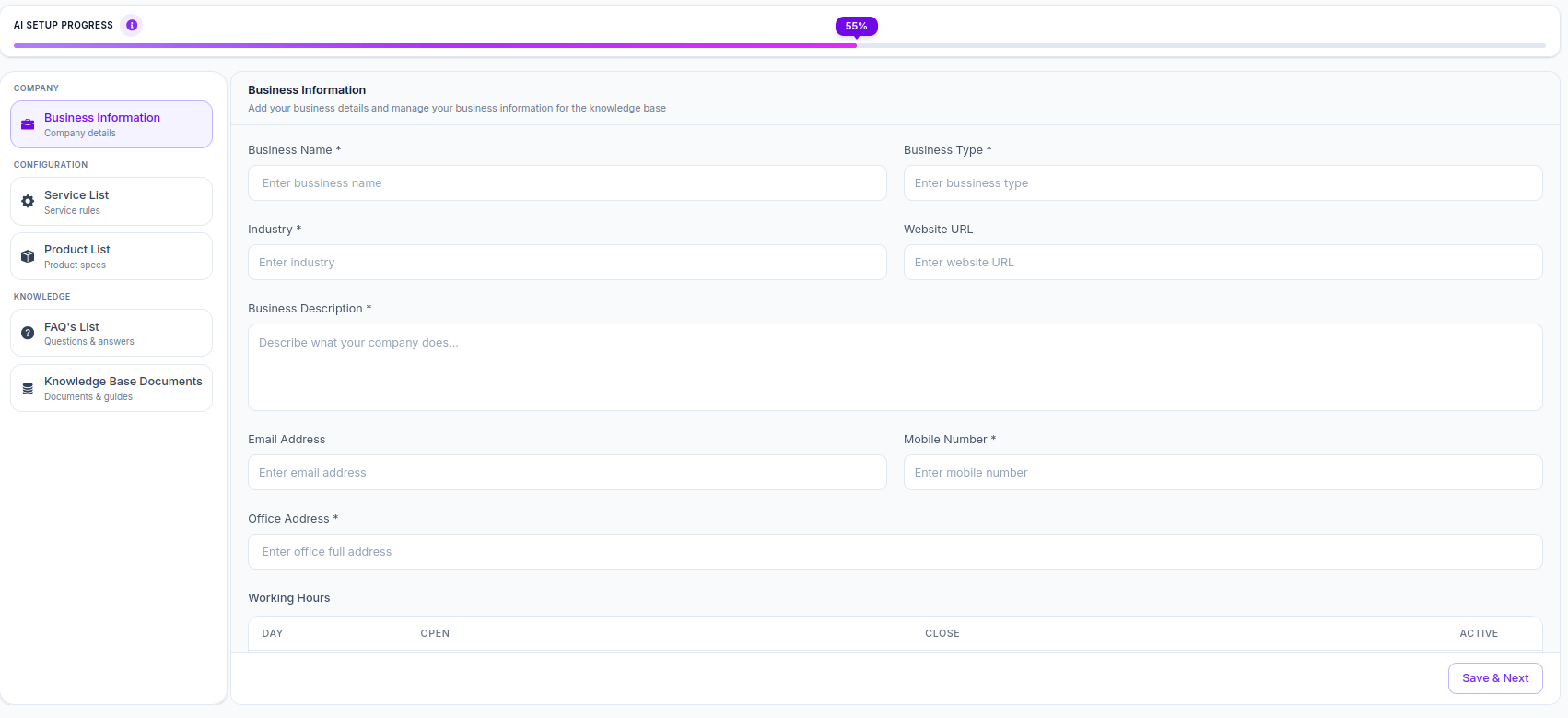 | Field | Required | What to Enter |
| ------------------------ | -------- | --------------------------------------------------------------------------------------- |
| **Business Name** | ✅ | Your official business name e.g. `Acme Corp` |
| **Business Type** | ✅ | What type of business you run e.g. `SaaS`, `Clinic`, `E-commerce Store` |
| **Industry** | ✅ | Your sector e.g. `Healthcare`, `Retail`, `Information Technology` |
| **Website URL** | ❌ | Your website e.g. `https://www.yourbusiness.com` |
| **Business Description** | ✅ | A clear summary of what your business does and what your agent should know about it |
| **Email Address** | ❌ | Support or contact email your agent can share with callers |
| **Mobile Number** | ✅ | Contact number your agent can provide when callers ask for direct contact |
| **Office Address** | ✅ | Full physical address your agent reads out when callers ask where you're located |
| **Working Hours** | ❌ | Open and close times per day - your agent uses this to answer "Are you open?" questions |
Fill in every field, even optional ones. The more context your agent has about your business, the more accurately it answers caller questions about your location, hours, and contact details.
Whatever you enter in **Office Address** and **Mobile Number** is exactly what your agent will read out to callers. Double-check these before saving.
Click **Save & Next** to proceed to Service List.
***
## Configuration: Service List
The Service List tells your agent what services your business offers. When a caller asks "What do you do?" or "Do you offer X?", your agent reads from this list to answer accurately.
| Field | Required | What to Enter |
| ------------------------ | -------- | --------------------------------------------------------------------------------------- |
| **Business Name** | ✅ | Your official business name e.g. `Acme Corp` |
| **Business Type** | ✅ | What type of business you run e.g. `SaaS`, `Clinic`, `E-commerce Store` |
| **Industry** | ✅ | Your sector e.g. `Healthcare`, `Retail`, `Information Technology` |
| **Website URL** | ❌ | Your website e.g. `https://www.yourbusiness.com` |
| **Business Description** | ✅ | A clear summary of what your business does and what your agent should know about it |
| **Email Address** | ❌ | Support or contact email your agent can share with callers |
| **Mobile Number** | ✅ | Contact number your agent can provide when callers ask for direct contact |
| **Office Address** | ✅ | Full physical address your agent reads out when callers ask where you're located |
| **Working Hours** | ❌ | Open and close times per day - your agent uses this to answer "Are you open?" questions |
Fill in every field, even optional ones. The more context your agent has about your business, the more accurately it answers caller questions about your location, hours, and contact details.
Whatever you enter in **Office Address** and **Mobile Number** is exactly what your agent will read out to callers. Double-check these before saving.
Click **Save & Next** to proceed to Service List.
***
## Configuration: Service List
The Service List tells your agent what services your business offers. When a caller asks "What do you do?" or "Do you offer X?", your agent reads from this list to answer accurately.
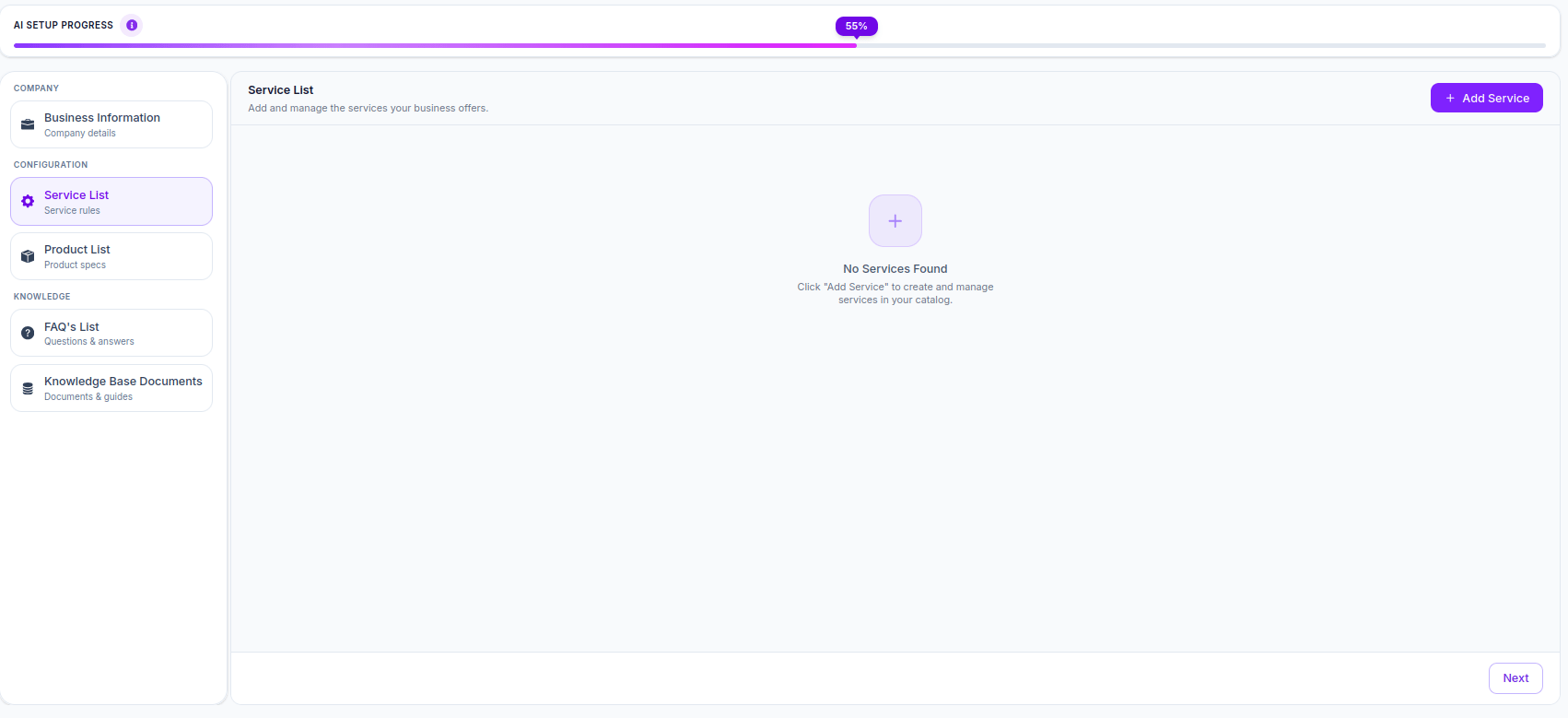 Click **"+ Add Service"** (top right) to add each service your business provides.
For each service, include:
* Service name
* Short description of what it includes
* Pricing if applicable
* Any eligibility or availability details
**Example services to add:**
| Service | Description |
| -------------------- | -------------------------------------------------------------------------- |
| AI Voice Agent Setup | Configure and deploy a custom AI voice agent for inbound or outbound calls |
| Outbound Campaign | Automated bulk calling campaigns for lead generation or reminders |
| CRM Integration | Connect Valuez AI with your existing CRM for automatic data sync |
| Agent Training | Upload and manage knowledge base content to improve agent accuracy |
Add every service your business offers, even minor ones. If a caller asks about something not in the list, your agent's fallback logic will acknowledge the gap and offer to connect them to a human - which is better than making something up.
Click **Save & Next** to proceed to Product List.
***
## Configuration: Product List
The Product List is where you add the specific products your business sells or provides. Your agent uses this to answer product-specific questions during calls.
Click **"+ Add Service"** (top right) to add each service your business provides.
For each service, include:
* Service name
* Short description of what it includes
* Pricing if applicable
* Any eligibility or availability details
**Example services to add:**
| Service | Description |
| -------------------- | -------------------------------------------------------------------------- |
| AI Voice Agent Setup | Configure and deploy a custom AI voice agent for inbound or outbound calls |
| Outbound Campaign | Automated bulk calling campaigns for lead generation or reminders |
| CRM Integration | Connect Valuez AI with your existing CRM for automatic data sync |
| Agent Training | Upload and manage knowledge base content to improve agent accuracy |
Add every service your business offers, even minor ones. If a caller asks about something not in the list, your agent's fallback logic will acknowledge the gap and offer to connect them to a human - which is better than making something up.
Click **Save & Next** to proceed to Product List.
***
## Configuration: Product List
The Product List is where you add the specific products your business sells or provides. Your agent uses this to answer product-specific questions during calls.
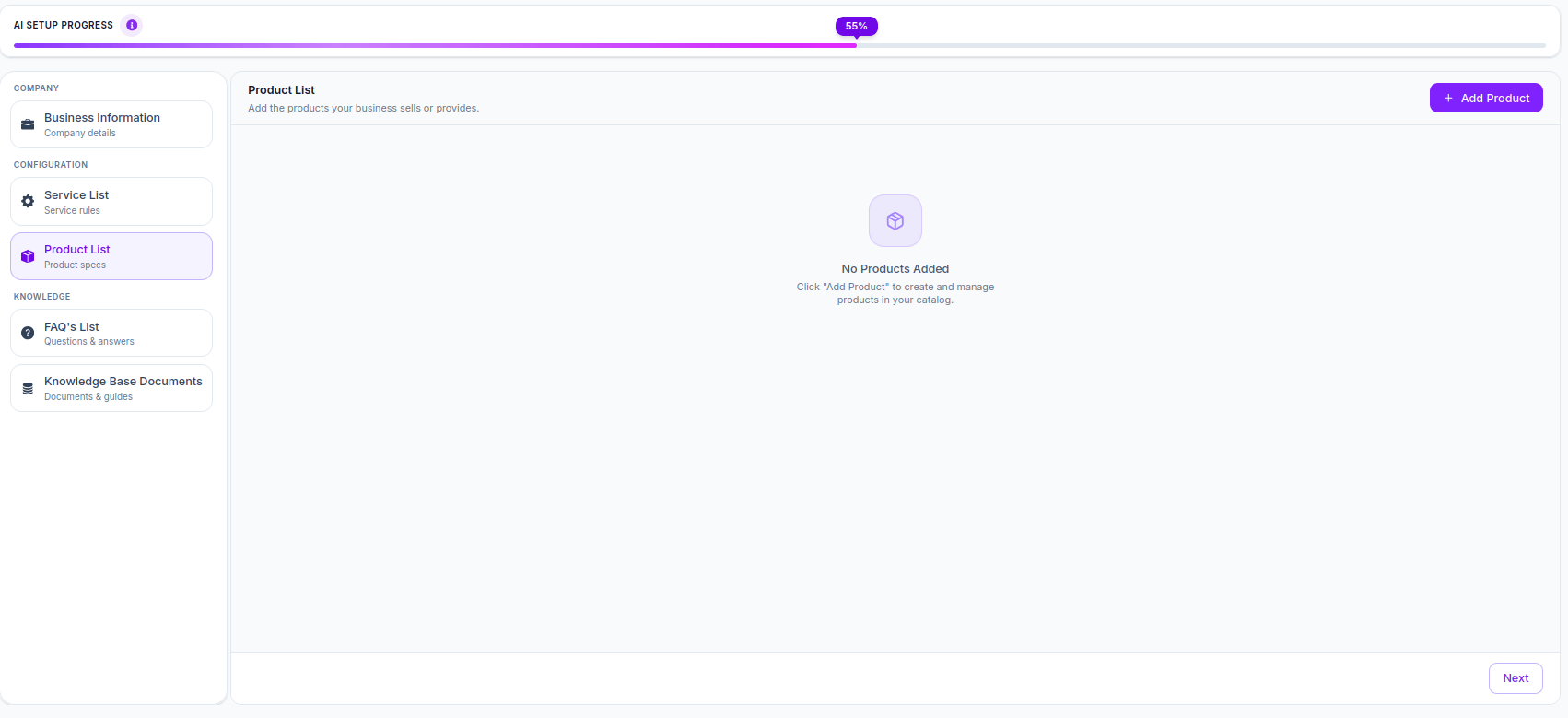 Click **"+ Add Product"** (top right) to add each product to your catalog.
For each product, include:
* Product name
* Description of what it does
* Key features
* Pricing or plan details
* Any limitations or requirements
**Example products to add:**
| Product | Description |
| --------------- | ----------------------------------------------------- |
| Starter Plan | Up to 5 agents, 500 minutes/month, email support |
| Growth Plan | Up to 20 agents, 2000 minutes/month, priority support |
| Enterprise Plan | Unlimited agents, custom minutes, dedicated support |
If your business is service-based and doesn't have distinct products, you can skip this section or use it to list your service packages or pricing tiers instead.
Click **Save & Next** to proceed to FAQ's List.
***
## Knowledge: FAQ's List
The FAQ's List is where you define specific question and answer pairs your agent uses during conversations. This is the most direct way to control exactly what your agent says in response to common questions.
Click **"+ Add Product"** (top right) to add each product to your catalog.
For each product, include:
* Product name
* Description of what it does
* Key features
* Pricing or plan details
* Any limitations or requirements
**Example products to add:**
| Product | Description |
| --------------- | ----------------------------------------------------- |
| Starter Plan | Up to 5 agents, 500 minutes/month, email support |
| Growth Plan | Up to 20 agents, 2000 minutes/month, priority support |
| Enterprise Plan | Unlimited agents, custom minutes, dedicated support |
If your business is service-based and doesn't have distinct products, you can skip this section or use it to list your service packages or pricing tiers instead.
Click **Save & Next** to proceed to FAQ's List.
***
## Knowledge: FAQ's List
The FAQ's List is where you define specific question and answer pairs your agent uses during conversations. This is the most direct way to control exactly what your agent says in response to common questions.
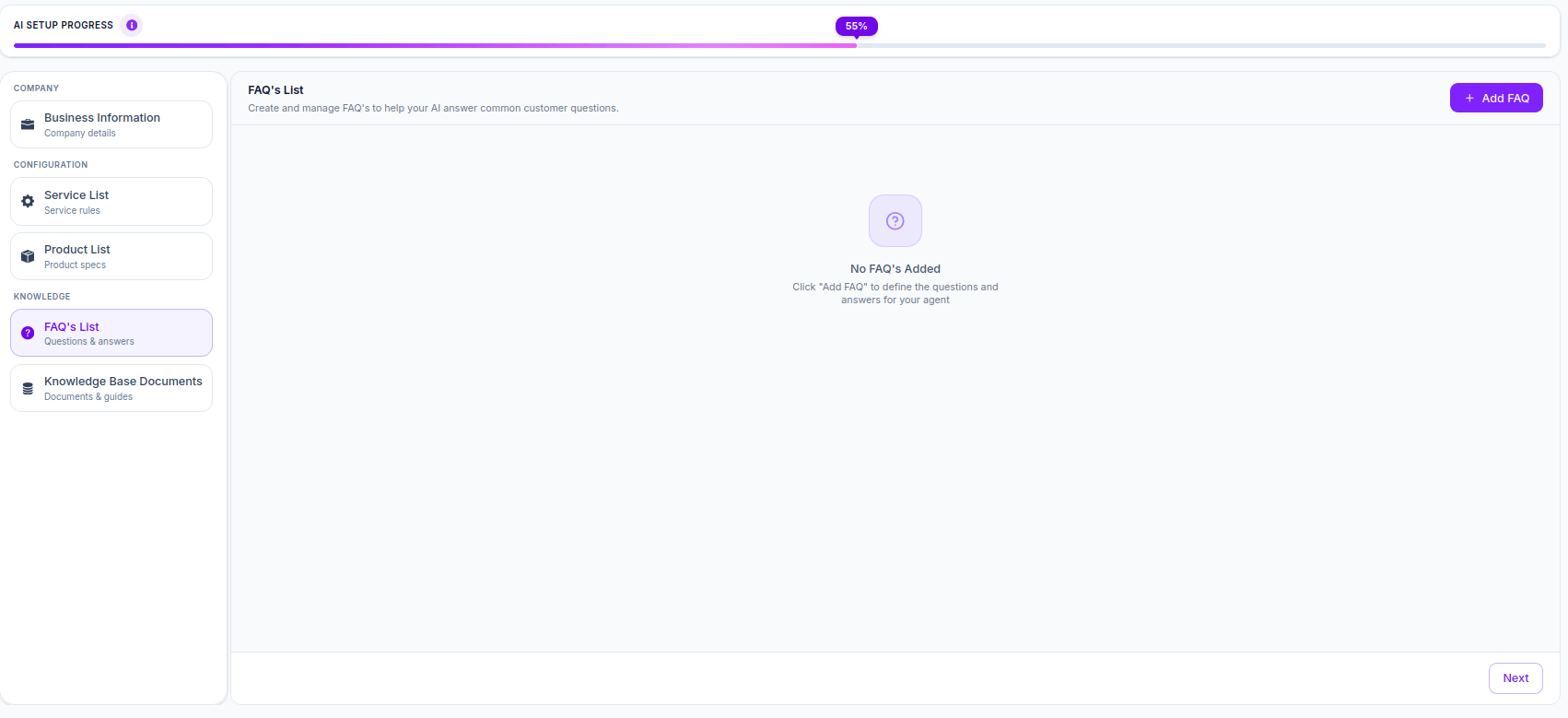 Click **"+ Add FAQ"** (top right) to add each question and answer pair.
**How FAQs work:** When a caller asks something that closely matches a question in your FAQ list, your agent prioritizes the FAQ answer over anything else - making FAQs your most reliable way to guarantee specific responses.
**Examples of FAQs to add:**
| Question | Answer |
| ------------------------------------ | ------------------------------------------------------------------------------------------------------------- |
| What are your business hours? | We are open Monday to Saturday, 9 AM to 6 PM IST. |
| How do I get started with Valuez AI? | You can sign up at app.valuez.ai and create your first agent in under 5 minutes. |
| Do you offer a free trial? | Yes, we offer a free plan with limited minutes so you can test the platform before upgrading. |
| How do I contact support? | You can reach our support team at [support@valuez.ai](mailto:support@valuez.ai) or call us at \[your number]. |
| Can I cancel anytime? | Yes, all plans are flexible and can be cancelled at any time from your dashboard. |
Write FAQs the way your customers actually ask questions - conversational, not formal. Your agent matches intent, not exact words, so natural phrasing works better than technical language.
Start with your top 10 most common customer questions. You can always add more later as you review call transcripts and see what callers are actually asking.
Click **Save & Next** to proceed to Knowledge Base Documents.
***
## Knowledge: Knowledge Base Documents
Knowledge Base Documents is where you upload files that give your agent deep, detailed knowledge about your business. This is the most powerful training section - your agent reads these documents in real time during calls to answer complex questions.
Click **"+ Add FAQ"** (top right) to add each question and answer pair.
**How FAQs work:** When a caller asks something that closely matches a question in your FAQ list, your agent prioritizes the FAQ answer over anything else - making FAQs your most reliable way to guarantee specific responses.
**Examples of FAQs to add:**
| Question | Answer |
| ------------------------------------ | ------------------------------------------------------------------------------------------------------------- |
| What are your business hours? | We are open Monday to Saturday, 9 AM to 6 PM IST. |
| How do I get started with Valuez AI? | You can sign up at app.valuez.ai and create your first agent in under 5 minutes. |
| Do you offer a free trial? | Yes, we offer a free plan with limited minutes so you can test the platform before upgrading. |
| How do I contact support? | You can reach our support team at [support@valuez.ai](mailto:support@valuez.ai) or call us at \[your number]. |
| Can I cancel anytime? | Yes, all plans are flexible and can be cancelled at any time from your dashboard. |
Write FAQs the way your customers actually ask questions - conversational, not formal. Your agent matches intent, not exact words, so natural phrasing works better than technical language.
Start with your top 10 most common customer questions. You can always add more later as you review call transcripts and see what callers are actually asking.
Click **Save & Next** to proceed to Knowledge Base Documents.
***
## Knowledge: Knowledge Base Documents
Knowledge Base Documents is where you upload files that give your agent deep, detailed knowledge about your business. This is the most powerful training section - your agent reads these documents in real time during calls to answer complex questions.
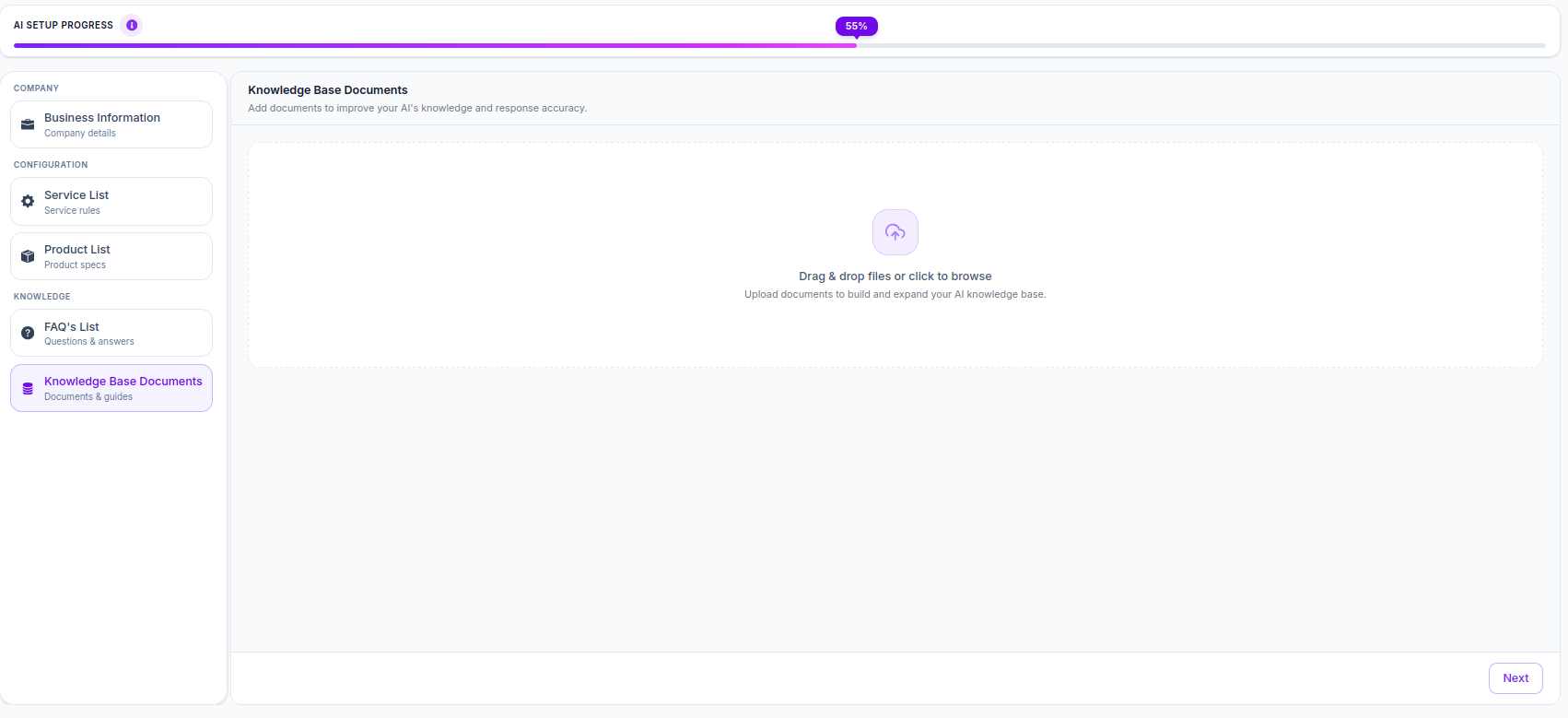 Click anywhere in the upload area or drag and drop files directly to upload.
**Supported content to upload:**
| Document Type | Examples |
| ------------------------- | -------------------------------------------------------- |
| **Product documentation** | Feature guides, spec sheets, user manuals |
| **Pricing documents** | Plan comparisons, pricing tables, discount policies |
| **Support guides** | Troubleshooting steps, how-to guides, setup instructions |
| **Company policies** | Refund policy, cancellation policy, terms of service |
| **Onboarding documents** | Getting started guides, setup checklists |
| **Sales collateral** | Brochures, capability decks, case studies |
Your agent answers strictly from what's in these documents. If a caller asks something not covered in your uploaded content, the agent will acknowledge it doesn't have that information and offer to connect to a human - it will never guess or make up an answer.
Keep documents focused and well-structured. A 5-page focused document on your pricing performs better than a 50-page general company document. Upload separate documents for separate topics.
Update your documents whenever your products, pricing, or policies change. Outdated documents are the most common cause of incorrect agent responses.
Click **Next** after uploading your documents. Your agent training is now complete.
***
## How All Five Sections Work Together
Each section contributes a different layer of knowledge to your agent:
| Section | What It Gives Your Agent |
| ---------------------------- | ------------------------------------------------------------------------- |
| **Business Information** | Identity - who you are, where you are, how to reach you, when you're open |
| **Service List** | Scope - what your business does and offers |
| **Product List** | Catalog - specific products, plans, and pricing your agent can discuss |
| **FAQ's List** | Direct answers - guaranteed responses to your most common questions |
| **Knowledge Base Documents** | Depth - detailed knowledge for complex questions beyond the basics |
Together, these five sections ensure your agent can handle the full range of caller questions - from "What do you do?" to "What's included in the Growth plan?" to "How do I troubleshoot X?" - without guessing, making things up, or sending callers to a human unnecessarily.
***
## Best Practices
Each section fills a different gap. An agent with only Business Information will struggle with product and service questions. Complete all five for the best performance.
Your agent is only as accurate as your training data. Any time your prices, services, hours, or policies change - update the relevant section immediately.
If there's something you absolutely need your agent to say in a specific way - use an FAQ. FAQ answers take priority over document-based answers.
One focused 5-page pricing document is more effective than one 100-page company handbook. Split large documents into topic-specific files.
After your agent goes live, review transcripts weekly. Every time you see a question your agent struggled with, add it as an FAQ or update the relevant document.
***
## Related Pages
Go back to agent configuration - LLM model, system prompt, voice, and transcriber settings.
Learn how to write better system prompts to improve agent conversation quality.
Monitor agent performance and use call data to improve your training content.
Set up phone number routing so your trained agent starts handling real calls.
Click anywhere in the upload area or drag and drop files directly to upload.
**Supported content to upload:**
| Document Type | Examples |
| ------------------------- | -------------------------------------------------------- |
| **Product documentation** | Feature guides, spec sheets, user manuals |
| **Pricing documents** | Plan comparisons, pricing tables, discount policies |
| **Support guides** | Troubleshooting steps, how-to guides, setup instructions |
| **Company policies** | Refund policy, cancellation policy, terms of service |
| **Onboarding documents** | Getting started guides, setup checklists |
| **Sales collateral** | Brochures, capability decks, case studies |
Your agent answers strictly from what's in these documents. If a caller asks something not covered in your uploaded content, the agent will acknowledge it doesn't have that information and offer to connect to a human - it will never guess or make up an answer.
Keep documents focused and well-structured. A 5-page focused document on your pricing performs better than a 50-page general company document. Upload separate documents for separate topics.
Update your documents whenever your products, pricing, or policies change. Outdated documents are the most common cause of incorrect agent responses.
Click **Next** after uploading your documents. Your agent training is now complete.
***
## How All Five Sections Work Together
Each section contributes a different layer of knowledge to your agent:
| Section | What It Gives Your Agent |
| ---------------------------- | ------------------------------------------------------------------------- |
| **Business Information** | Identity - who you are, where you are, how to reach you, when you're open |
| **Service List** | Scope - what your business does and offers |
| **Product List** | Catalog - specific products, plans, and pricing your agent can discuss |
| **FAQ's List** | Direct answers - guaranteed responses to your most common questions |
| **Knowledge Base Documents** | Depth - detailed knowledge for complex questions beyond the basics |
Together, these five sections ensure your agent can handle the full range of caller questions - from "What do you do?" to "What's included in the Growth plan?" to "How do I troubleshoot X?" - without guessing, making things up, or sending callers to a human unnecessarily.
***
## Best Practices
Each section fills a different gap. An agent with only Business Information will struggle with product and service questions. Complete all five for the best performance.
Your agent is only as accurate as your training data. Any time your prices, services, hours, or policies change - update the relevant section immediately.
If there's something you absolutely need your agent to say in a specific way - use an FAQ. FAQ answers take priority over document-based answers.
One focused 5-page pricing document is more effective than one 100-page company handbook. Split large documents into topic-specific files.
After your agent goes live, review transcripts weekly. Every time you see a question your agent struggled with, add it as an FAQ or update the relevant document.
***
## Related Pages
Go back to agent configuration - LLM model, system prompt, voice, and transcriber settings.
Learn how to write better system prompts to improve agent conversation quality.
Monitor agent performance and use call data to improve your training content.
Set up phone number routing so your trained agent starts handling real calls.