
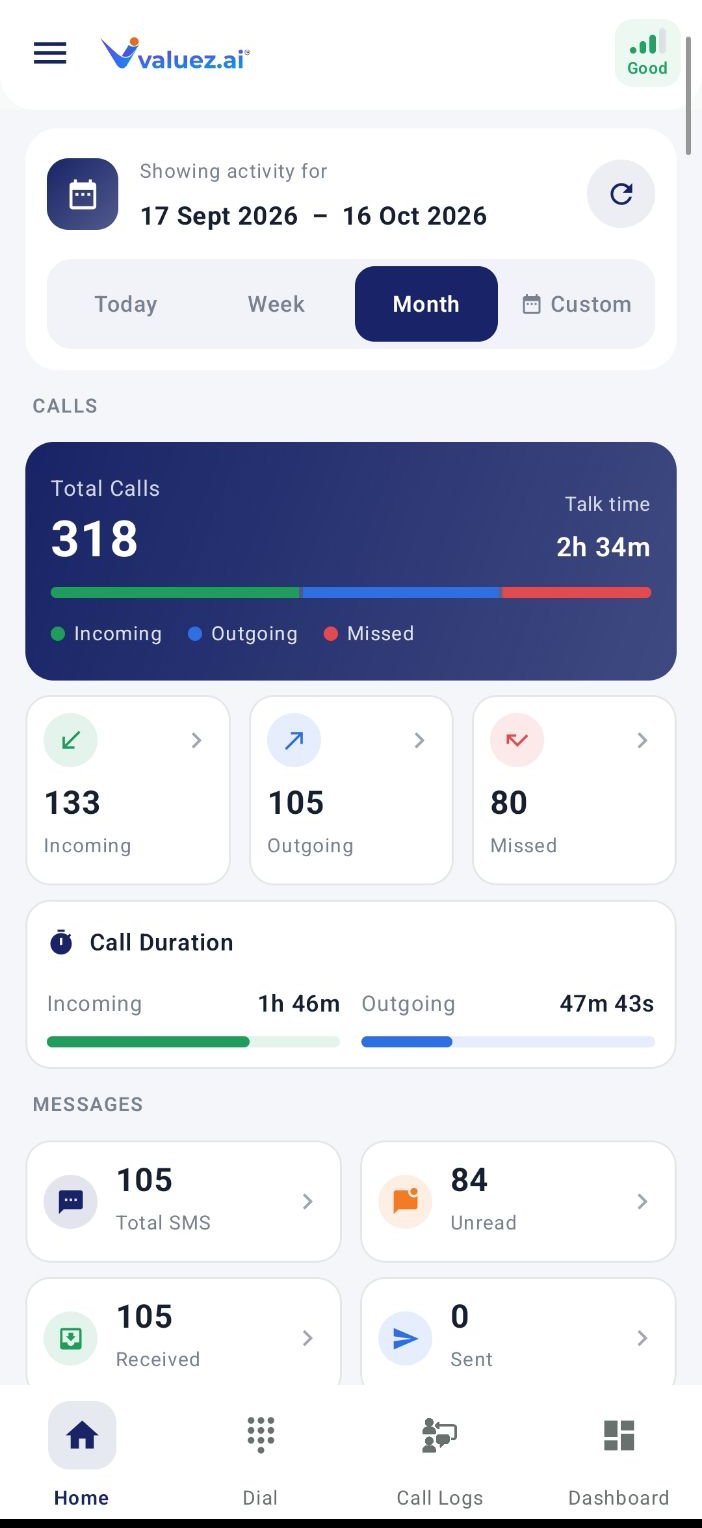
Dashboard call and SMS activity
Select the period first
Choose the period at the top before reading the totals:- Today — activity for the current day.
- Week — the recent weekly view shown by the app.
- Month — the current monthly view.
- Custom — a start and end date you select.
Read the call summary
The call section combines the number of calls with total talk time.
High activity does not always mean strong progress. Review stages, outcomes, remarks, and follow-ups together with call totals.
Read SMS activity
Where SMS access is enabled, the Dashboard can show:- Total SMS — all recorded messages in the selected period.
- Received — messages received by the phone.
- Sent — messages sent from the phone.
- Unread — received messages that have not been opened.
Check phone readiness
The Dashboard can also show status such as Network Signal, Battery Level, and Recharge Expiry when that information is available.- If signal is weak, move to a better coverage area before an important call.
- If battery is low, charge the phone before starting a long call sequence.
- If recharge information needs attention, confirm that the work SIM has an active plan.
- If values are missing, open Device Info and recheck the app permissions.
A practical start-of-day routine
- Set the period to Today.
- Check network signal and battery.
- Review Missed Calls and return valid customer calls.
- Open unread messages and handle urgent replies.
- Review yesterday’s pending follow-ups if your workflow requires it.
- Open Dial and start with the highest-priority assigned contacts.
- Return to the Dashboard later to confirm that new activity has synchronized.
If a total looks wrong
The mobile Dashboard shows activity for your phone and account. Managers review combined team information from Sales Team → Team Overview in the Valuez web dashboard.
Call assigned customers
Open your list, place calls, and record the next action.
Check device readiness
Review network, SIM, battery, permissions, and recording status.