
Before you begin
You need:- An Android phone with internet access
- Your Valuez account details
- Access to the Valuez web dashboard or the APK supplied by your administrator
- A Windows computer and USB cable if call recording needs manual activation
1. Download the official APK
If you can access the Valuez web dashboard:- Sign in to Valuez on your computer.
- Open Sales Team.
- Under Help & Resources, select Download App.
- Wait for
Valuez.apkto finish downloading. - Transfer the file to the Android phone if you downloaded it on a computer.
2. Allow installation on Android
- On the phone, open Files or Downloads.
- Tap
Valuez.apk. - If Android blocks the installer, tap Settings when prompted.
- Enable Allow from this source for the Files app or browser you used.
- Return to the installer and tap Install.
If Google Play Protect blocks the APK
Some phones may block an APK that was installed outside Google Play.- Open the Google Play Store.
- Tap your profile picture, then open Play Protect.
- Open Settings.
- Temporarily turn off Scan apps with Play Protect if it prevents the approved APK from installing.
- Install
Valuez.apk. - Return to Play Protect and turn scanning back on.
3. Allow restricted settings when requested
Accessibility permission may be blocked for an app installed from an APK.- Open Phone Settings → Apps → Valuez AI.
- Tap the three-dot menu in the top-right corner.
- Select Allow restricted settings.
- Enter the phone password or PIN if Android asks for it.
4. Make Valuez AI the default phone app
- Open Phone Settings → Apps → Default apps → Phone app.
- Select Valuez AI.
- Return to Valuez and confirm that the default-phone status is active.
5. Enable accessibility
- In Valuez, open the recording or setup screen and tap the accessibility option.
- Android opens Settings → Accessibility → Installed apps.
- Select Valuez AI.
- Turn access on and confirm the permission.
6. Allow app permissions
When prompted, allow the permissions used for your work:- Phone and Call logs — place calls and show call history
- Contacts — display customer names and contact details
- Microphone — support call recording and analysis
- Notifications — show follow-ups and app status
- SMS — show call-and-message activity where enabled by your company
7. Activate call recording when it shows “Not active”
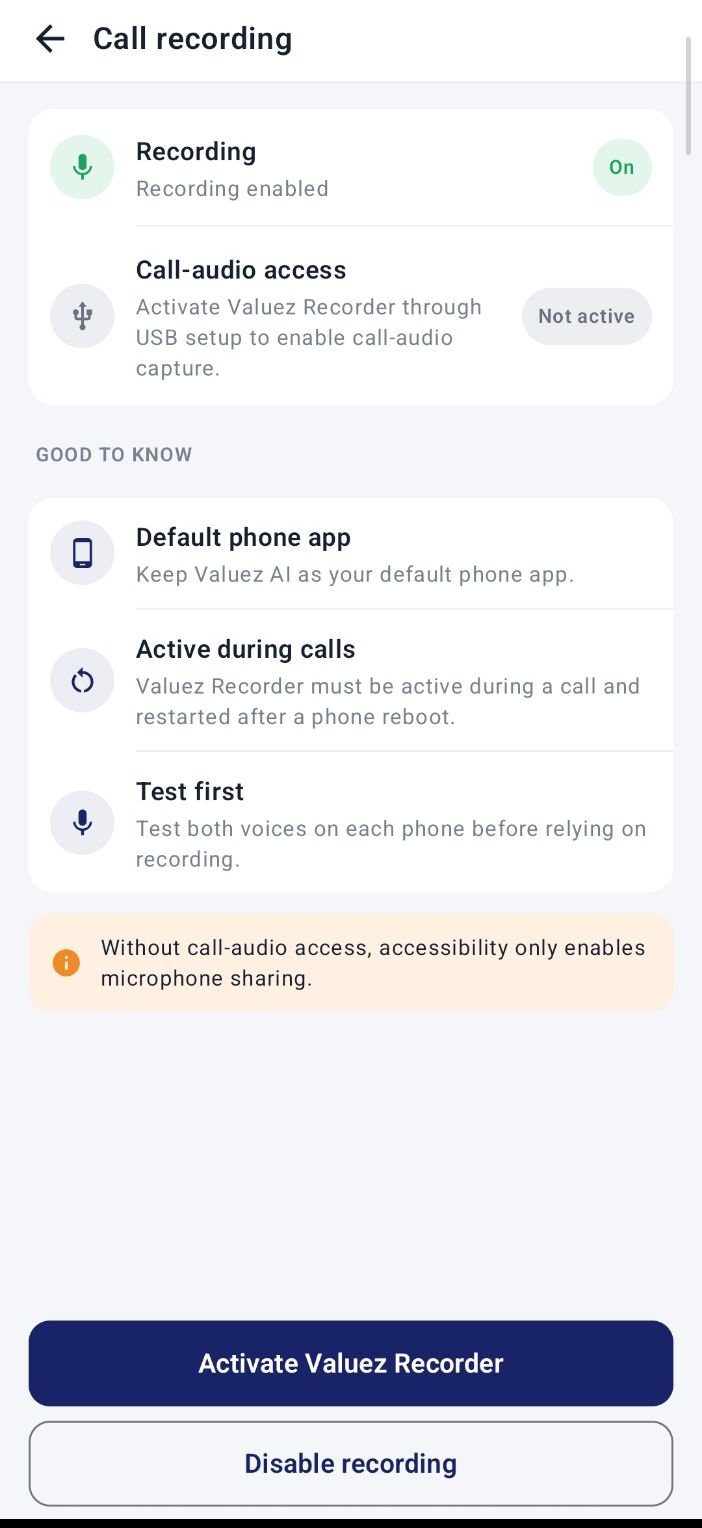
Call recording status and activation
- Enable Developer options on the Android phone.
- Turn on USB debugging.
- Download the official Android SDK Platform Tools on the Windows computer.
- Extract the downloaded folder, for example to
Desktop\platform-tools. - Connect the unlocked phone to the computer with a USB cable.
- Accept Allow USB debugging on the phone.
- Obtain the approved
Activate-ValuezRecorder.ps1file from your Valuez administrator or support team and save it on the Desktop. - Open PowerShell and run:
8. Verify the setup
Before starting customer calls:- Open Valuez and sign in.
- Confirm Valuez AI is the default phone app.
- Confirm accessibility is enabled.
- Open Call Recording Settings and confirm recording is enabled and call-audio access is active.
- Place a short test call with permission from the other participant.
- Open Call Logs and verify that the call appears.
- Check that the recording captures both sides clearly where recording is permitted.
After a phone restart, open Valuez and check the recording status before the first work call. Follow your organization’s consent and recording policy for every call.
Troubleshooting
Continue to sign-in and first-use setup
Sign in, check the four main tabs, and prepare for your first customer call.