
What you need
- The email address registered by your administrator
- Your password or account invitation
- An active internet connection
- The Valuez AI app installed on your Android phone
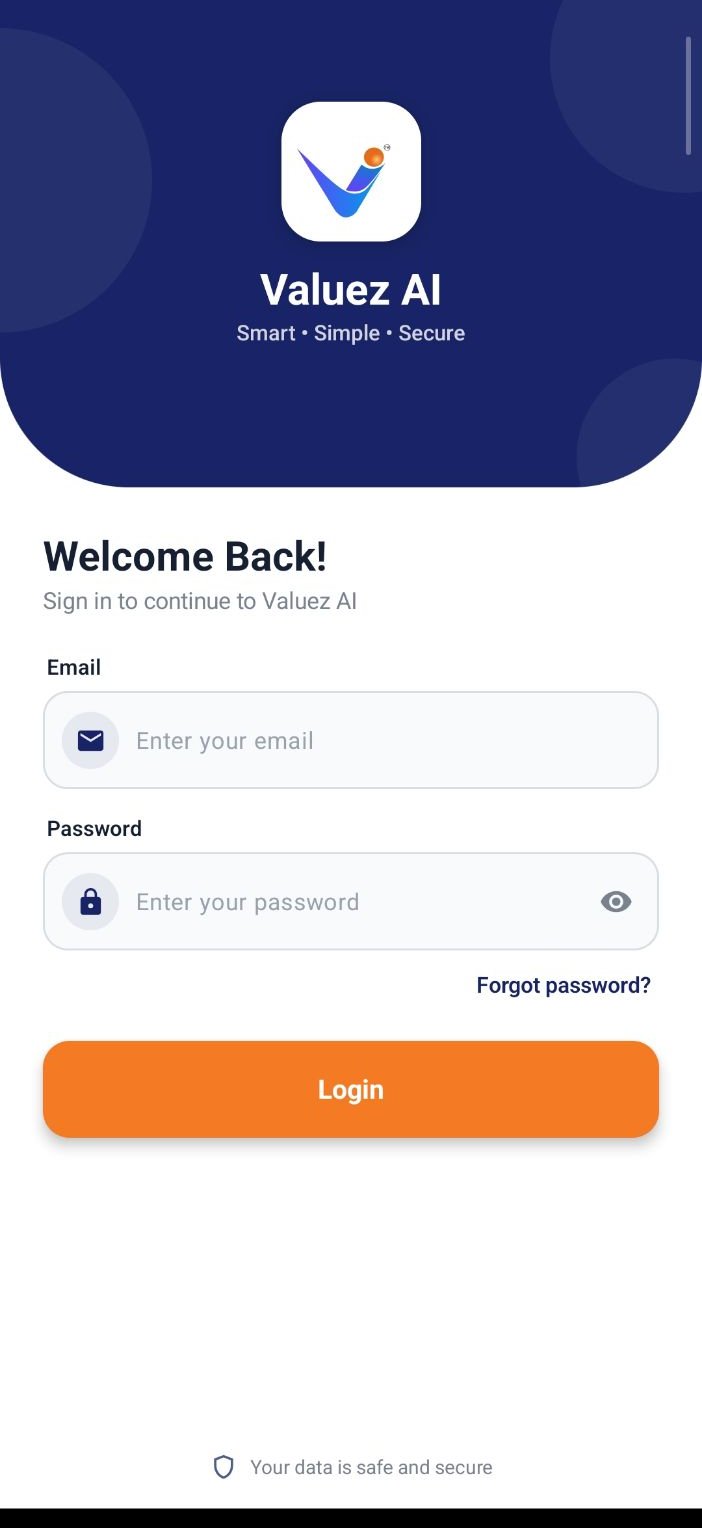
Valuez AI sign-in screen
Sign in
- Open Valuez AI.
- Enter your registered email address.
- Enter your password.
- Tap Login.
- Wait for your workspace and assigned contacts to load.
Check the four main tabs
After signing in, use the bottom navigation to move between:- Home — daily information and shortcuts.
- Dial — assigned contacts, recent calls, and the dial pad.
- Call Logs — previous calls and customer actions.
- Dashboard — call, talk-time, and SMS activity.
Confirm phone access
Open the side menu and review Call Recording Settings.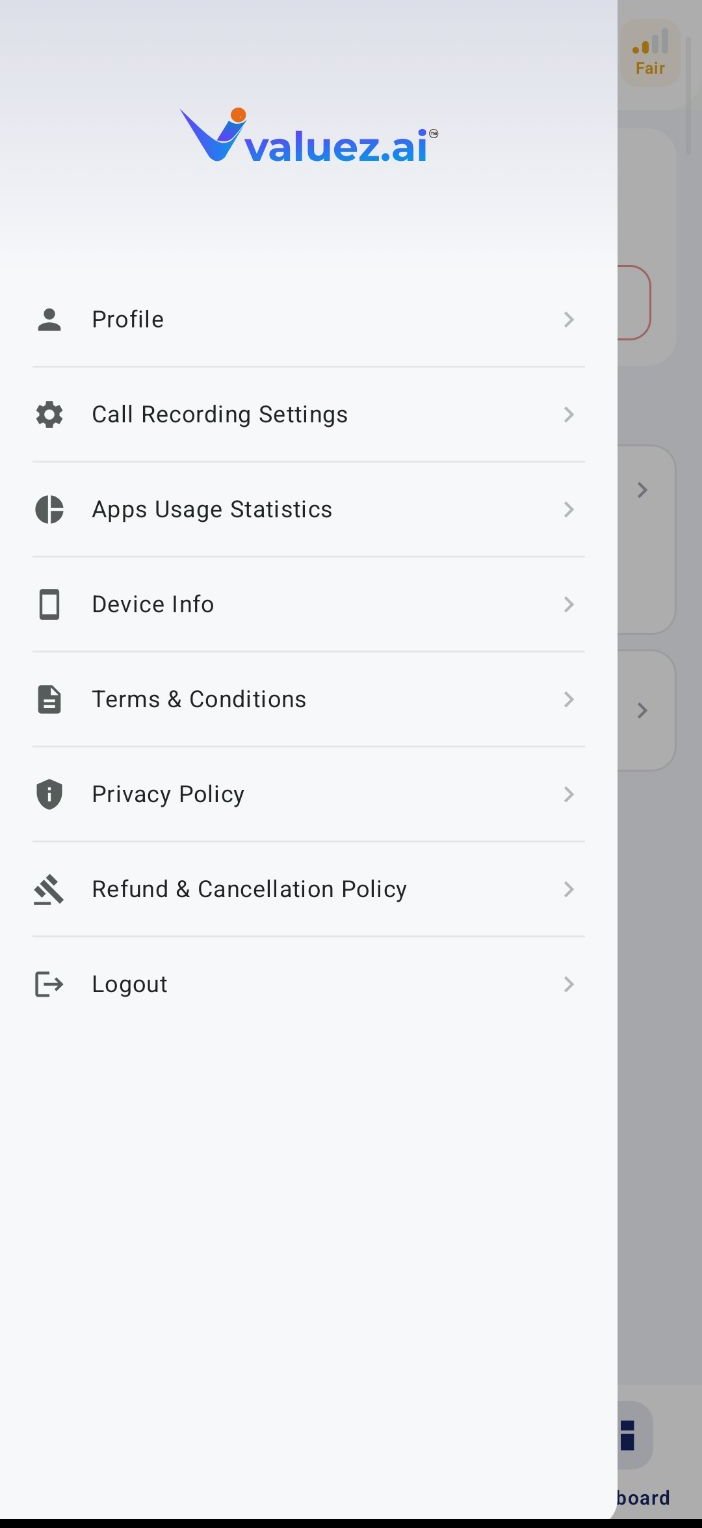
App menu with Call Recording Settings and Device Info
- Valuez AI is the default phone app.
- Recording is enabled if your company uses recorded calls.
- Call-audio access shows active.
- Accessibility and required Android permissions remain enabled.
Place a test call
Before calling a customer, make one approved test call:- Open Dial and enter the test number.
- Place a short call.
- End the call and open Call Logs.
- Confirm the number, time, and duration are visible.
- If recording is enabled, confirm that the audio is available and clear.
Sign-in and setup problems
Read your Dashboard
Understand calls, talk time, SMS totals, and date filters.
Call assigned customers
Work through the assigned list and record each next step.