
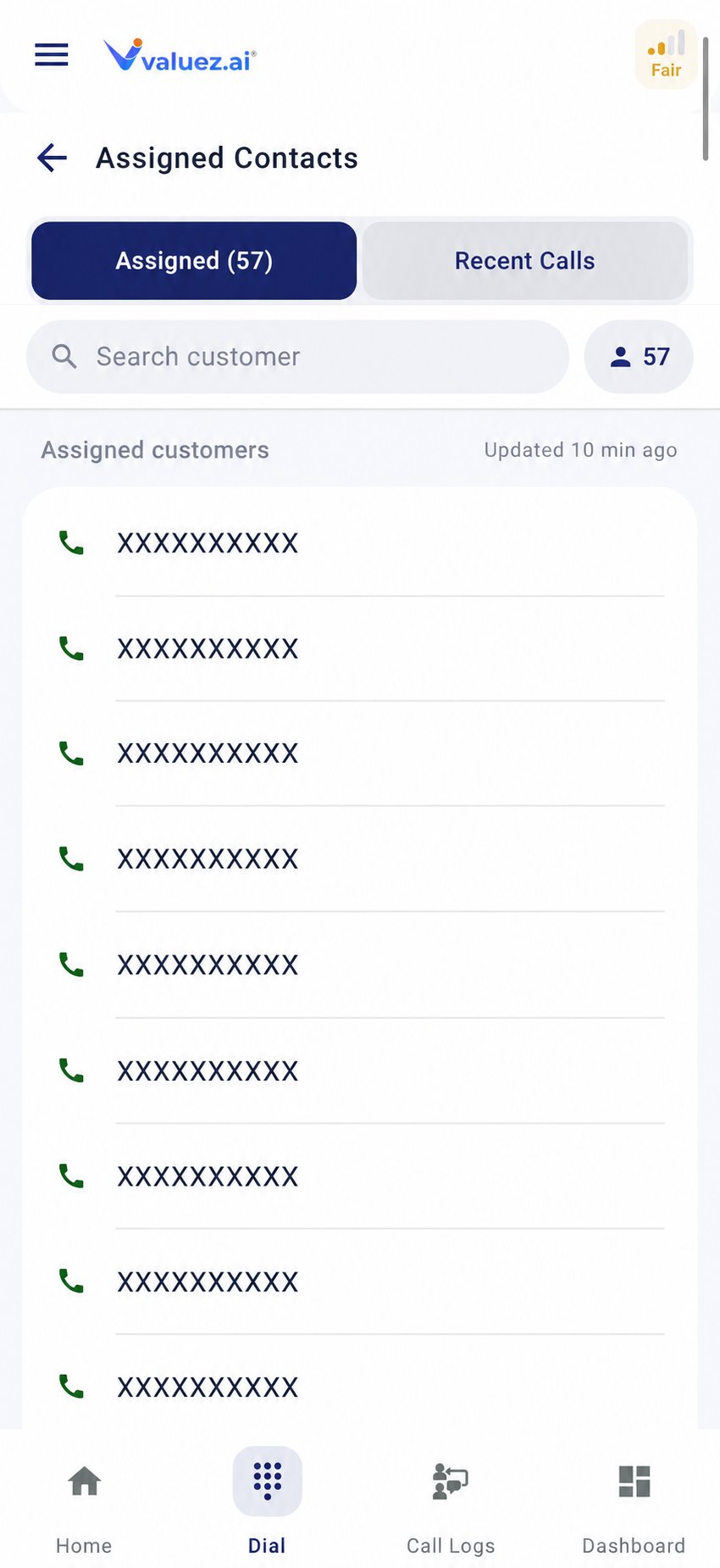
Assigned contacts in Dial
Understand the Dial screen
The screen has two useful lists:- Assigned — customers your manager has assigned to you.
- Recent Calls — numbers you called recently.
Call an assigned customer
- Open Dial → Assigned.
- Find the customer you want to call.
- Review the displayed name and number.
- Tap Call.
- Speak with the customer and end the call normally.
- Open Call Logs when the call finishes.
- Update the customer stage, call status, remark, and follow-up as needed.
Place a direct call
Use the dial pad when the number is not in your assigned list.- Open Dial and select the dial pad.
- Enter the complete phone number.
- Check the number before calling.
- Tap the green Call button.
- After the call, check Call Logs and save any available customer details or next step.
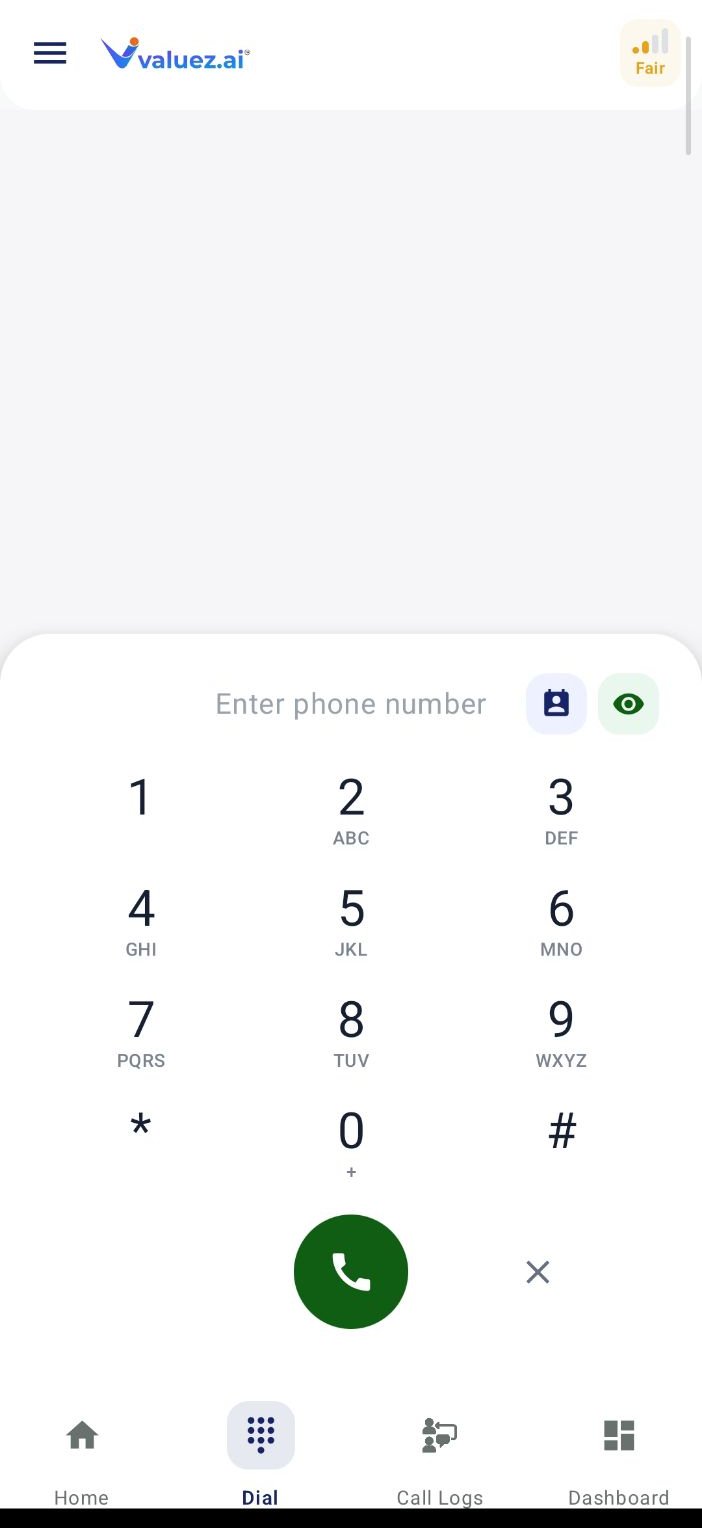
Direct dial pad
A directly dialed number may not contain a customer name or full CRM details. Add or correct those details when the app provides the option.
If your team uses automatic dialing
Automatic dialing can move through assigned contacts in sequence. Before starting:- Confirm your phone has a stable network connection.
- Keep Valuez AI open and ready.
- Use a headset only when it is safe and allowed by your organization.
- Stop the sequence if you need time to finish notes or a follow-up.
- Review the saved result before moving to the next customer.
Record the outcome while it is fresh
After each important call:- Open the customer in Call Logs.
- Select Update Stage.
- Choose the stage that reflects the customer’s current position.
- Select the result of this call, such as Connected, Busy, or Call Back Later.
- Add a short remark with the customer’s need and your next action.
- Schedule a follow-up if a date or time was agreed.
Asked for brochure; call tomorrow after 3 PM.Interested in Model X, quantity 5; needs price by Friday.Wrong number; do not call again.
When calling does not work
Review the call and customer
Open summaries, transcripts, history, CRM details, and follow-up actions.