
Before you connect
- Select the agent that should handle appointment requests.
- Have access to the intended business Google account.
- Confirm the agent’s time zone in Agent Settings.
- Review Knowledge Base → Business Information → Working hours.
- Make sure your account has permission to edit the agent.
Connect Google Calendar
- Open AI Voice Agents and select your agent.
- Choose Calendar Appointment.
- Select Connect Google Calendar.
- Sign in to the business Google account you want to use.
- Review and approve the requested calendar access.
- Return to Valuez and confirm the calendar-connected message.
- Check the selected agent before changing appointment settings.
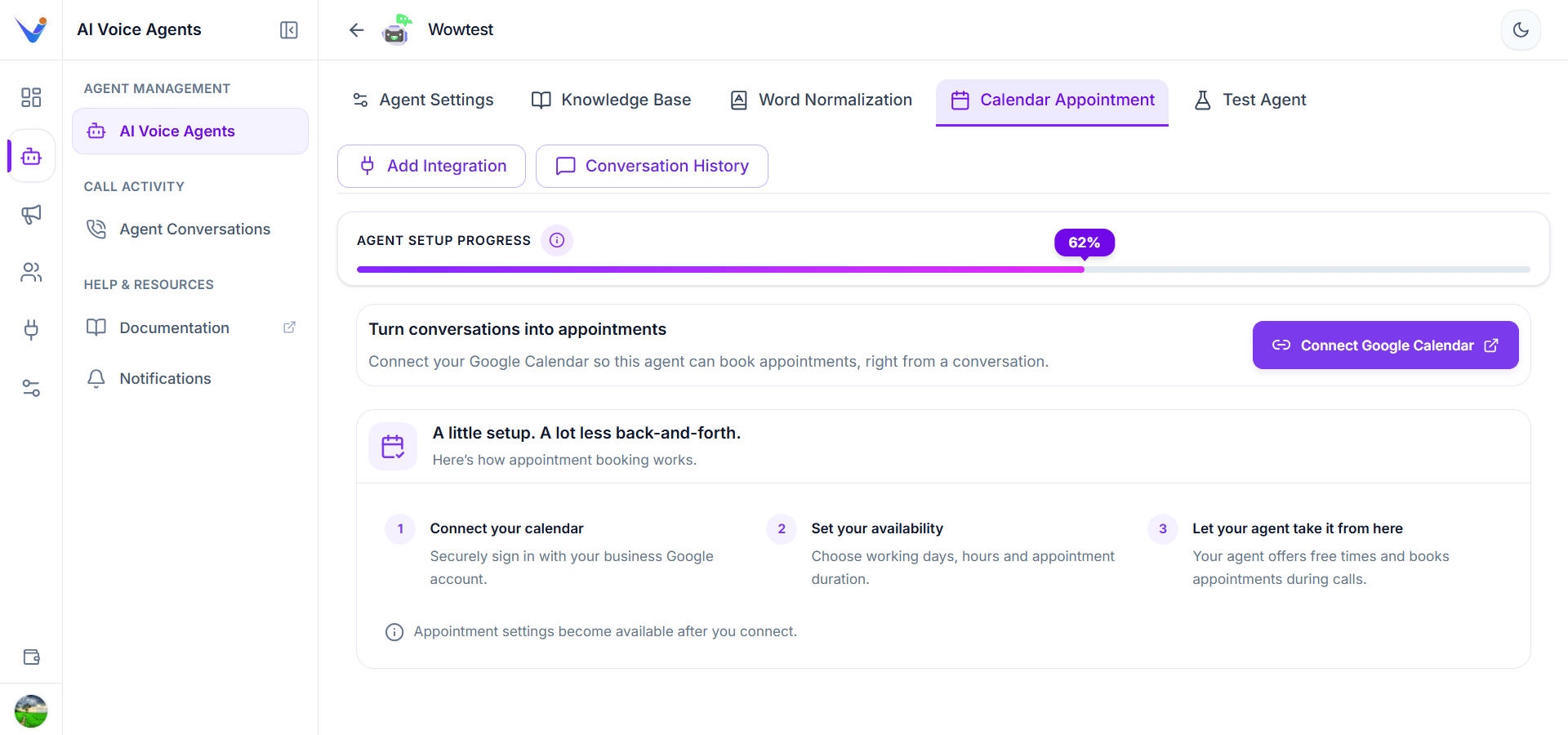
Connect a Google Calendar for the selected agent
The introductory screen mentions working days and hours. Edit those under Knowledge Base → Business Information → Working hours, rather than in the appointment settings form.
Set appointment rules
After connecting, configure the following fields and select Save.
Use whole numbers. For example, a duration of 30, booking window of 60, and minimum notice of 120 means appointments last 30 minutes, can be booked up to 60 days ahead, and require two hours of notice.
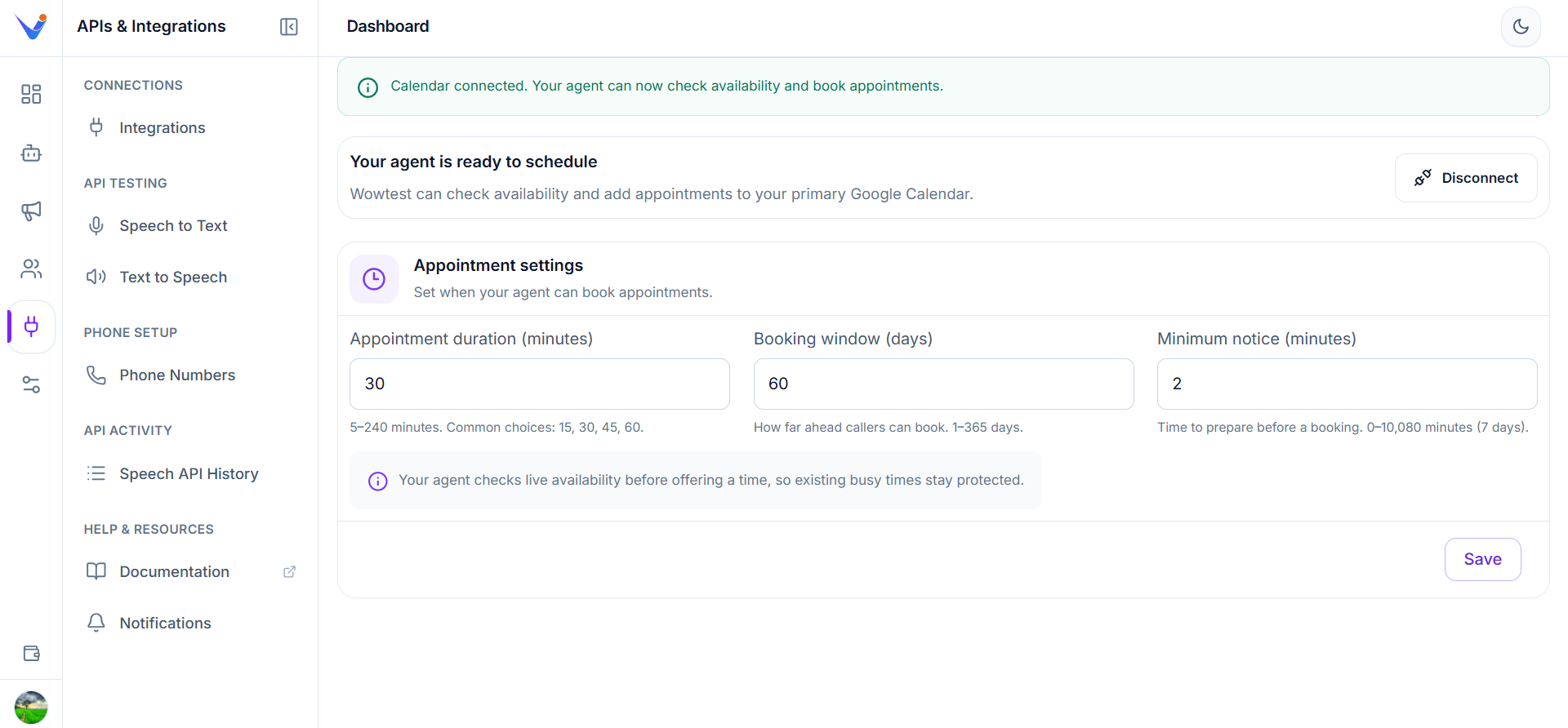
Connected calendar with appointment settings
Set working hours and time zone
- Open Knowledge Base → Business Information for the agent.
- Review the working hours for each day, including closed days.
- Save the business information.
- Return to Agent Settings and verify the time zone.
- Test an appointment on an open day and a closed day.
What happens during a booking
A typical conversation follows this sequence:- The customer asks for an appointment or agrees to schedule one.
- The agent asks which day suits them.
- The agent checks available times.
- The customer chooses a time.
- The agent collects the required contact details.
- The appointment is created in the connected calendar.
- The agent confirms the booking after it succeeds.
Test before customer use
Run a clearly identified test booking through Test Agent or your configured conversation channel.- Ask for a specific day and choose an offered time.
- Confirm the agent reports a successful booking.
- Open the connected Google Calendar and check the event.
- Verify the date, start time, duration, and contact details.
- Try a busy time, a closed day, and a time inside the minimum-notice period.
- Remove the test event from Google Calendar when you finish.
Reconnect or disconnect
If Valuez reports that the calendar connection needs attention, select Reconnect Google Calendar and complete Google sign-in again. To stop bookings, select Disconnect and confirm. The agent will stop checking calendar availability and creating appointments through that connection. Existing Google Calendar events remain.Troubleshooting
Review business information
Keep working hours and business details accurate.
Test appointment conversations
Confirm the complete booking experience before launch.